Linking and editing Content from the application
Linking Content to the Formatted Content component
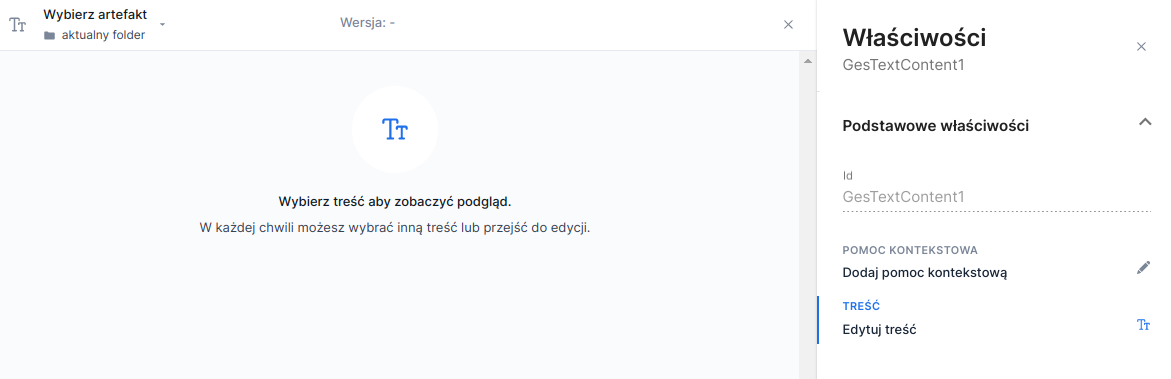
After adding the component Formatted content from the base components panel, it must be supplied with an artifact containing the content. With the component selected, choose in the component properties panel in the field CONTENT window the Edit content. This will open the panel and display information about the lack of a selected artifact. To choose an artifact use the selection field Select artifact located in the panel header. Choosing an artifact automatically selects the latest version. The version can be changed using the selection field Version.

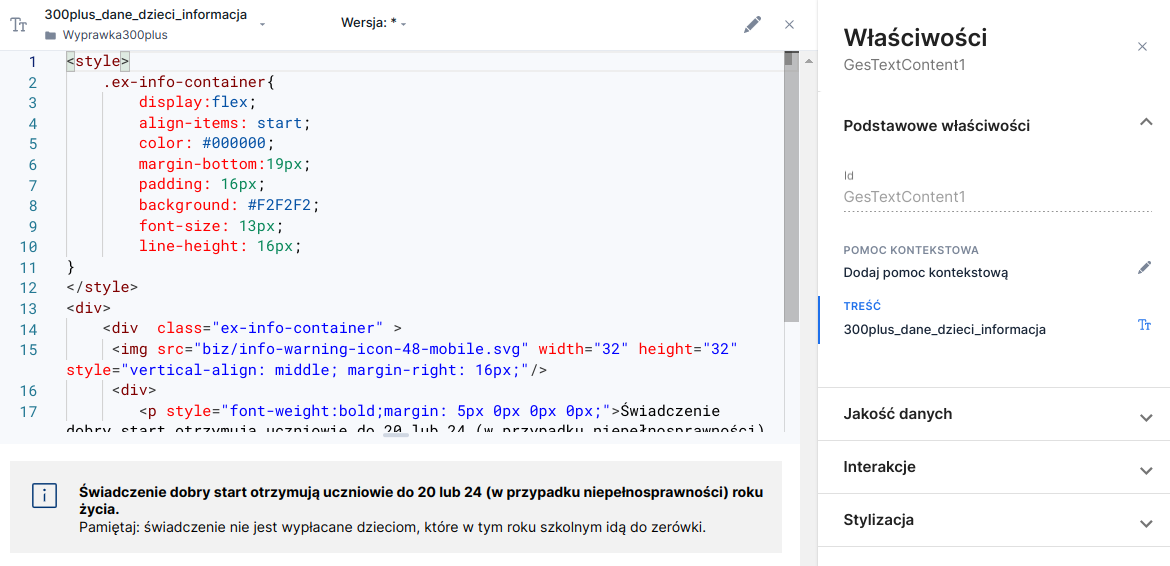
After selecting an artifact the editor displays the formatted content code and its preview. Editing the content is possible after pressing the edit button (
).

Edit mode
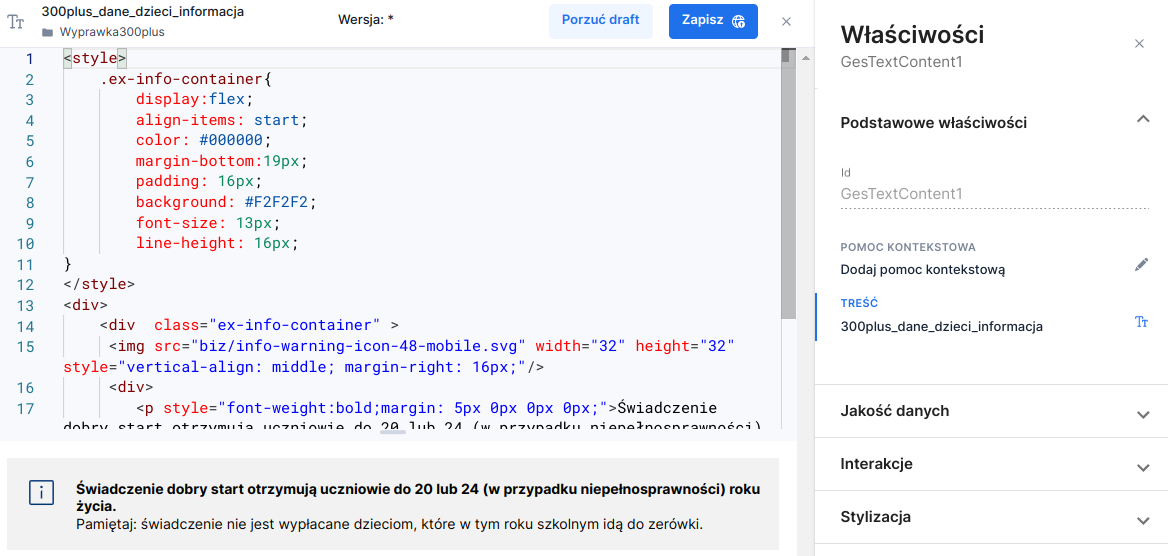
Formatted content can be edited in the content editor (Content editor) or directly where it was added (on the application or in a composite component). In the second case this is done using the Content tab on the component properties panel Formatted content. In edit mode the edit button is replaced by the buttons Discard draft and Save. The artifact name and version selection fields are locked.
Changes should be made in the code editor available directly under the header. Changes are stored in a working copy (draft). These changes can be discarded at any time using the Discard draftbutton. To save changes click the Savebutton, and then enter a version description in the dialog that appears. Confirming the dialog will create a minor version of the artifact.

Information about creating an artifact Content is described in Creating and attaching the Content artifact.
Last updated
Was this helpful?