
Text field - TextField
Single-line text input field.
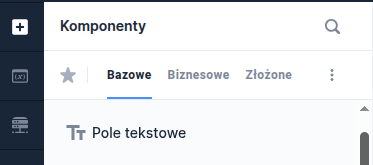
Component properties
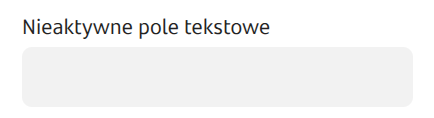
Disabled field presented as a label (section Basic properties)
labelIfDisabled
Set to true means that a disabled component is displayed as bold text, without dimming, borders and background (in the form it looks like a Label). → demo form: demoLabelIfDisabled
Availability of the functionality depends on the license and may not be available in all deployments.
Data type (section Data quality)
expectedType
Specifies the type of input data (available formats: STRING, LONG, DOUBLE, URL, EMAIL) to force the mobile channel to display a keyboard matching that type (e.g. to show only the numeric keyboard we use the LONG type).
Real-time formatting (section Data quality)
formatterRealTime
Determines whether formatting should occur after pressing a key on the keyboard or only after leaving the field. Default value is "false".
Validation after every character (section Data quality)
validationOnEverySign
Allows triggering validation (only requiredness and mask) on the component after each entered character. Default component value is 'false'. Availability of the functionality depends on the license and may not be available in all deployments.
Character counter (section Data quality)
characterCounter
If set to true, a counter showing how many characters have been entered should appear under the field. If the field also has Maximum number of characters, that information will also appear. Displaying validation errors hides the counter. Availability of the functionality depends on the license and may not be available in all deployments.
Autocomplete for empty field (section Data quality)
autocompleteForEmptyField
Allows displaying suggestions upon entering the text field. Enables choosing one of the options or typing a choice manually. For a text field that should display suggestions, check the checkbox Autocomplete for empty field from the section Data quality. Connect an external data source, which is described below in the section Autocomplete - feeding suggestions.
Minimum number of characters triggering suggestions (section Data quality)
minLengthToAutocomplete
Minimum number of characters for which the mechanism that triggers suggestions (autocompleter) will be activated. A value of 0 means this mechanism is disabled. For the functionality to work correctly the flag autoServerUpdate must be set to "false". Availability of the functionality depends on the license and may not be available in all deployments.
Additional option in the list (key) (section Data quality)
autocompleteNoMatchButtonLabelKey
Translation key whose value is displayed on an additional button shown in the autocomplete suggestions list, which allows the customer to indicate that they did not find a suitable option in the domain. The button emits the action AUTOCOMPLETE_NO_MATCH_BUTTON_CLICKED when clicked. Control of the button's visibility is described below in the section Autocomplete - feeding suggestions. Availability of the functionality depends on the license and may not be available in all deployments.
Filter the suggestions list (section Data quality)
autocompleteOptionsFilterEnabled
Flag defining whether, when the suggestions list is fed from a service, they should be platform-filtered based on the text entered in the field. Setting to false allows putting the entire, case-specific suggestion logic in the service. Default value: true. Availability of the functionality depends on the license and may not be available in all deployments.
Show clear field button (section Styling)
showClearButton
Flag indicating whether the component should display a button used to clear the field. Default value: false.
Availability of the functionality depends on the license and may not be available in all deployments.
Maximum number of characters (section Data quality)
maxLength
Specifies the maximum number of characters.
Mask match error message (section Data quality)
maskValidationError
Error label in case the value does not match the mask.
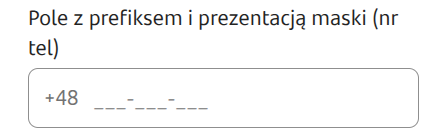
Mask presentation (section Data quality)
visibleMask
Allows the template designer to define the format in which data should be entered into the text field. The mask allows defining specific types of fields using the following characters:
S - letter (A-Z, a-z)
9 - numeric character
* - alphanumeric character
You can also place a desired separator in the mask, e.g. "-", "/". Example masks:
99/99/9999 - e.g. date in format 05/02/2013
99-99-99 - e.g. date in format 05-02-13
99-999 - e.g. postal code 61-123
SS999 - a string with two letters at the beginning and three digits at the end, e.g. CD123.
More information here: Simple validations
Prefix visibility condition (section Data quality)
prefixVisibleCondition
Specifies whether and when to present the prefix. Availability of the functionality depends on the license and may not be available in all deployments.
Prefix (section Data quality)
prefix
Text to display in the prefix.
Suffix (section Data quality)
suffix
Text to display in the suffix.
Placeholder (section Data quality)
placeholderText
Text displayed as the field placeholder, default is empty. Availability of the functionality depends on the license and may not be available in all deployments.
Formatter (section Data quality)
formatter
Name of the formatter used for the field.
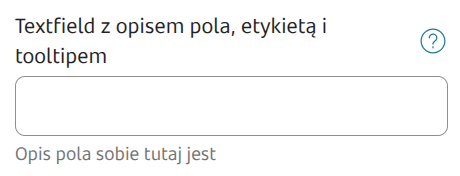
Field description (section Data quality)
description
Text displayed as the field description below it, default is empty. Availability of the functionality depends on the license and may not be available in all deployments.
Sensitive data mask (section Security)
sensitiveDataMask
Specifies the type of mask applied to entered values e.g. sensitive data (available types: NO_MASK, PESEL, ID_NUMBER, CELL_PHONE_NUMBER, PHONE_NUMBER). The default type is NO_MASK, for which no sensitive data masking is applied. Only a value coming from the Data source from another field. Examples of behavior: Sensitive data mask Availability of the functionality depends on the license and may not be available in all deployments.
Preventing illegal suggestion values (section Security)
forbidIllegalValues
Default value "false".
Pasting capability (section Security)
pasteEnabledCondition
Conditional pasting into the field (if we set the field's value to "false", it will not be possible to paste values from the clipboard into the field).
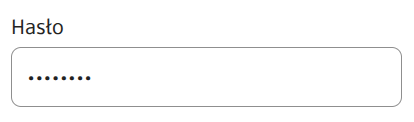
Password (section Security)
password
Set to "true" means that instead of typed characters dots will appear in the field (i.e. the entered password will not be visible). Default value "false".
Icon (section Styling)
iconUrl
Availability of the functionality depends on the license and may not be available in all deployments. Allows displaying an icon in the text field. Provide the icon address as a URL or file path. Accepted file formats: png, jpg, svg.
If the option Disabled field presented as a labelhas been selected, the defined Prefix or Autocomplete has been enabled, the icon will not be displayed.
More information about component properties: Common component properties
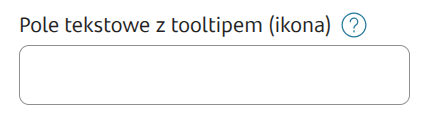

Autocomplete - feeding suggestions
To feed a component with autocomplete enabled with a suggestions list, you need to connect an External Data Source (EDS) to it, which can be a dictionary or a service.
Feeding from a service
Input parameters
When suggestions are fed from a service, that service can receive information about the value entered in the field. This value is passed in the parameter __searchText. Therefore, to be able to filter the search domain by the value entered in the text field, you should define an input parameter named "__searchText" in the ServiceProxy (the name starts with two underscores). This parameter does not need to be bound in the control from the Eximee Designer.
Output parameters
The service output should be bound to the appropriate component parameters.
autocompleteValue
Subsequent values to display on the suggestions list.
showAutocompleteNoMatchButton
Optional flag indicating whether to display an additional button on the suggestions list (described in the autocompleteNoMatchButtonLabelKey property). Default value false. Availability of the functionality depends on the license and may not be available in all deployments.
descriptionText
Additional value presented together with autocompleteValue.
Demo form: demoTextComponents and demoText
Demo form in selected deployments: textFieldIcon
Last updated
Was this helpful?