
Repeatable section - RepeatableSection
A set of fields that can be filled in repeatedly in the form by the user.
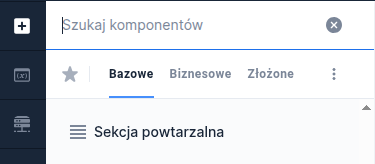
Component properties
Minimum number of section occurrences (section Basic properties)
minCount
Minimum number of occurrences of the repeatable section (initial value 1). At the time the form is displayed this is also the number of occurrences that are visible and available by default. When removing section items while filling out the form you cannot go below this number.
Maximum number of section occurrences (section Basic properties)
maxCount
Maximum number of occurrences of the repeatable section (initial value 1). When adding section items you cannot exceed this number.
Title (section Basic properties)
title
Title.
Feature availability depends on the license and may not be available in all deployments.
Title of the entire repeatable section (section Basic properties)
parentSectionTitle
Title for the entire repeatable section.
Label for the collapse section button (section Other)
Label for the collapse section button.
Feature availability depends on the license and may not be available in all deployments.
Label for the expand section button (section Other)
Label for the expand section button.
Feature availability depends on the license and may not be available in all deployments.
Foldable section (section Other)
foldable
Specifies whether the section should be collapsible (initially set to "false").
Feature availability depends on the license and may not be available in all deployments.
Condition for collapsing the section (section Other)
foldedCondition
Condition for collapsing the section.
Feature availability depends on the license and may not be available in all deployments.
Presentation method for section expansion (section Other)
presentation
Specifies the presentation method for expanding the section. Available presentation types for collapse/expand: STANDARD and LABELS (wider description below).
Feature availability depends on the license and may not be available in all deployments.
Dynamic button labels (section Other)
plusMinusLabels
Conditions for the visibility of add/remove buttons for elements of the repeatable section.
Label for the remove section button (section Other)
minusText
Label for the minus button (remove an element of the repeatable section).
Label for the add section button (section Other)
plusText
Label for the plus button (add an element of the repeatable section).
Title of the expanded section (section Other)
rowTitleExpanded
Title displayed for the expanded section.
Feature availability depends on the license and may not be available in all deployments.
Title of the collapsed section (section Other)
rowTitleCollapsed
Title displayed for the collapsed section.
Feature availability depends on the license and may not be available in all deployments.
Component border (section Other)
parentSectionFrameVisible
Setting the flag causes a frame to be displayed around all occurrences of the repeatable section (initially set to "false").
Feature availability depends on the license and may not be available in all deployments.
Offset value for the add button (section Other)
plusButtonOffset
Offset value for the add button (initially set to 0).
Feature availability depends on the license and may not be available in all deployments.
Context help for the remove button (section Other)
minusToolTipText
Context help for the row remove button
More information about component properties: Common component properties
Working with the repeatable section
Placing a repeatable section on the form template adds an area that can be worked with similarly to the whole form. This means that this area has its own page layout and can contain any number of base components. In the example in the illustration the occurrence of the repeatable section has been configured as a composite consisting of a text field and value selection fields from a list with labels. The plus/minus sign in the lower right corner is used to add additional rows to the section.
In the resulting form the occurrences of the repeatable section are displayed according to the configuration. The user can remove or add occurrences using the minus and plus.
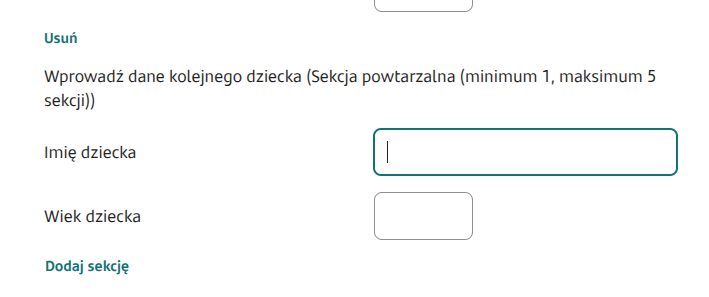
You cannot use session variables — here we use technical fields (e.g. the Text Field component with the property Technical field). Also populating fields from a service in a repeatable section may cause unusual errors — e.g. incorrect display of components (but not necessarily). In such a situation a workaround using a technical field should be applied.
Populating the repeatable section with a service
It is recommended that when creating a ServiceProxy you inherit from the class AbstractRepeatableServiceProxyThis class automatically returns 3 values: minCount, maxCount and count. These values can be set or left alone — they are optional.
Sample ServiceProxy:
It has 2 input fields added,
It has 2 additional output fields added (minCount, maxCount, count are added in the superclass),
To set the parameters you only need to call the appropriate setters on the model RepeatableSectionMetadata call the appropriate setters,
After setting the above parameters, we set the values that we will then map to individual fields.
To use the above ServiceProxy, in externalDataSource the type should be REPEATABLE_SCECTION_SERVICE.
In summary: the service added 2 rows but set the count value to 5. So 5 rows will be displayed, of which only 2 will be filled with the mapped value from the endpoint output1.
There is also the possibility of populating the repeatable section with a script.
Example of a repeatable section with values to sum
When we want to sum values from the repeating component GesTextField1 in the repeatable section, we create a new GesTextField2 outside the section and hook up in the External data source the SumService script:
In the script input parameters we connect the repeating component with the values to sum GesTextField1, and in the output parameters we choose output, i.e. the sum of values, as the text attribute.

Demo forms:
demoRepeatableSection
repeatable_section_service (a form showing section population by a service or script)
demoRepeatableSectionValidator (a form with a validator for repeating values in the section)
Last updated
Was this helpful?