Formatted content (collapsible) - RollableTextContent

The availability of functionality depends on the license and may not be available in all deployments.

Component used to present an artifact Content with a collapse/expand option (used e.g. to display a legal notice).

Component properties

Eximee Designer property
Attribute name in the Source
Description

Field height (section Basic properties)

contentHeight

Component height (default set to 200). If the entire text does not fit in the component, a vertical scrollbar is inserted. Availability of this feature depends on the license and may not be available in all deployments.

Field title (section Basic properties)

contentTitle

Title displayed at the top of the component (empty by default). Clicking the title collapses/expands the component content.

Presentation of field content (section Basic properties)

contentDefaultVisible

Showing the component content (by default the property is checked - value set to "true"). If the property is unchecked (value "false"), the component content is collapsed and will be displayed after clicking the expand arrow or the component title.

More information about component properties: Common component properties

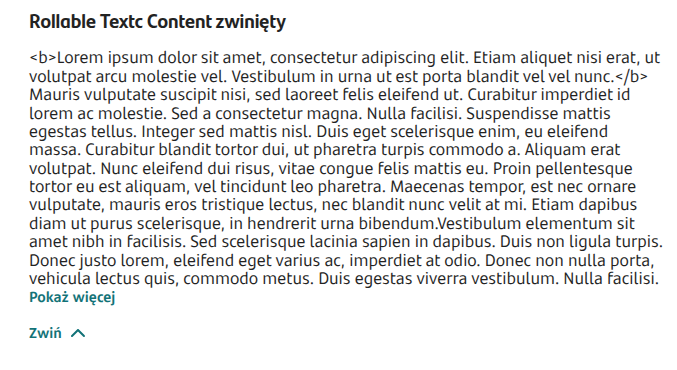
If in the inserted artifact Content an expression was used /more/, the component will display a "Show more" button at that location (clicking it will reveal the hidden part of the content).

Attaching a content source in the component

To display content in the component, you must point to a previously created artifact Content (creating the artifact is described in: Creating and attaching the Content artifact).

1

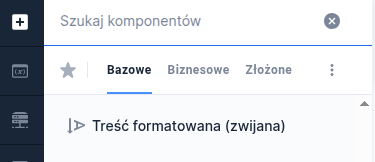
Select component

After selecting the component Formatted (collapsible) content go in the panel Properties to the section Interactions.

2

Select external data source

In the field EXTERNAL DATA SOURCE click Select service and attach the service TextContentService (description of attaching the service: Example of attaching a service in the component).

3

Specify the input parameter and output mappings

As the input parameter "artifact" click the option Select component or constant indicate the appropriate artifact Content, and in the output parameters map the appropriate attributes to the service output parameters.

Illustration 1. Sample appearance of the component on the form (content collapsed)
Illustration 2. Sample appearance of the component on the form (content expanded)

Demo form: demoRollableTextContent

Last updated

Was this helpful?