> For the complete documentation index, see [llms.txt](https://docs.eximee.com/llms.txt). Markdown versions of documentation pages are available by appending `.md` to page URLs; this page is available as [Markdown](https://docs.eximee.com/documentation/documentation-en/budowanie-aplikacji/interfejs-uzytkownika/eximee-dashboard.md).
# Eximee Dashboard
**Eximee Dashboard** This is an Eximee platform module used for managing tasks and cases in the employee environment (back office). It allows users to browse, filter, claim, and manage tasks and business processes that are carried out in the workflow system (e.g. Eximee BPMS). Main functions of Eximee Dashboard:
* Displaying the list of tasks and cases,
* Filtering tasks and cases by various criteria,
* Viewing task and process details,
* Claiming, forwarding, and releasing tasks,
* Ability to withdraw from a process (if the process supports it),
* Handling notes for cases and tasks.
## Task list and case list
### Task list
The task list presents individual tasks (the so-called *user tasks*) within BPMN processes. Each entry corresponds to a specific task to be performed by a user or a group of users. Tasks can come from different cases, which means that the user sees all their operational responsibilities in one place. From the list, it is possible to claim, forward, or release tasks, making it the main tool for daily work.
**Configuration:** [Task list configuration](/documentation/documentation-en/budowanie-aplikacji/interfejs-uzytkownika/eximee-dashboard/konfiguracja/lista-zadan.md)
Figure 1. Eximee Dashboard view (Task list)
***
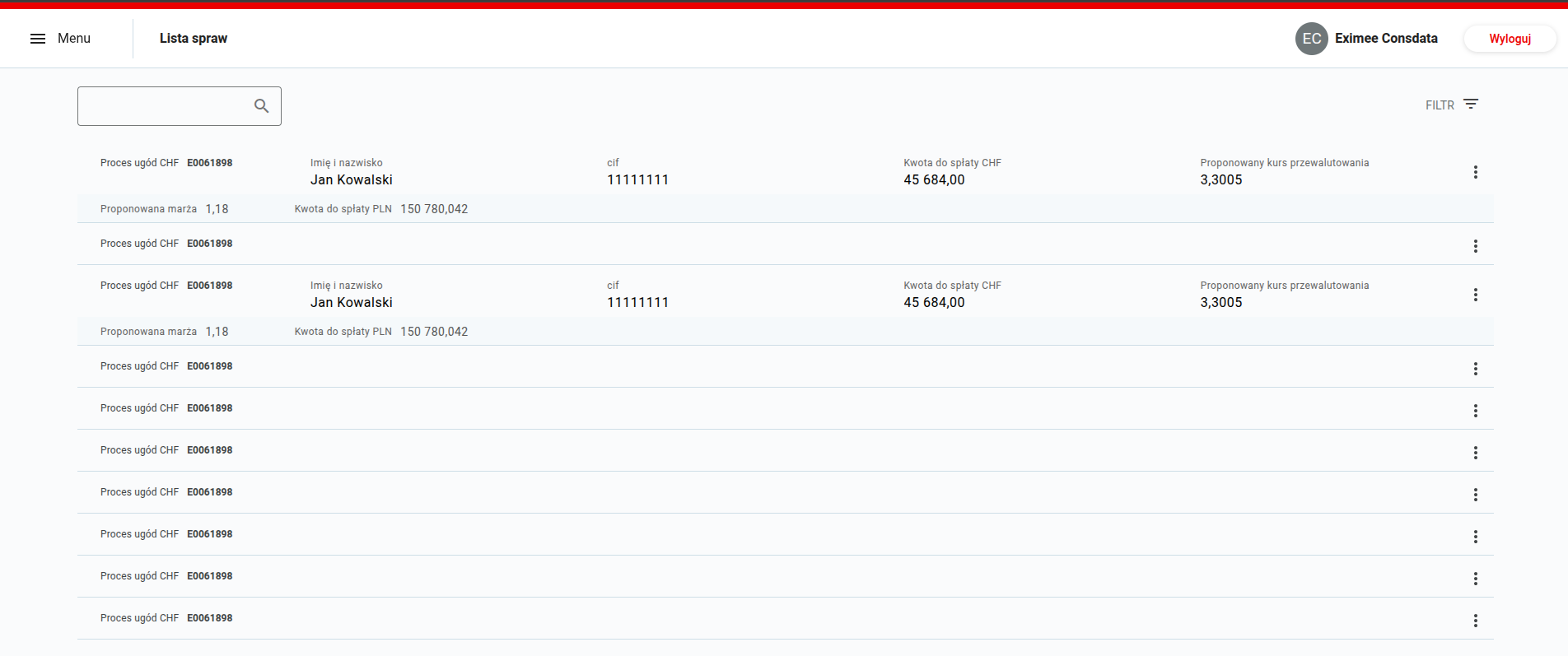
### Case list
The case list presents complete business processes (cases) that may consist of many tasks. Unlike the task list, this view focuses on the business context — it allows analysis of the process status, its history, and related data. Each case represents a process instance and allows the user to track its progress from start to finish.
**Configuration:** [Case list configuration](/documentation/documentation-en/budowanie-aplikacji/interfejs-uzytkownika/eximee-dashboard/konfiguracja/lista-spraw.md)
Figure 2. Eximee Dashboard view (Case list)
***
## Tabs in the case view
### Case data
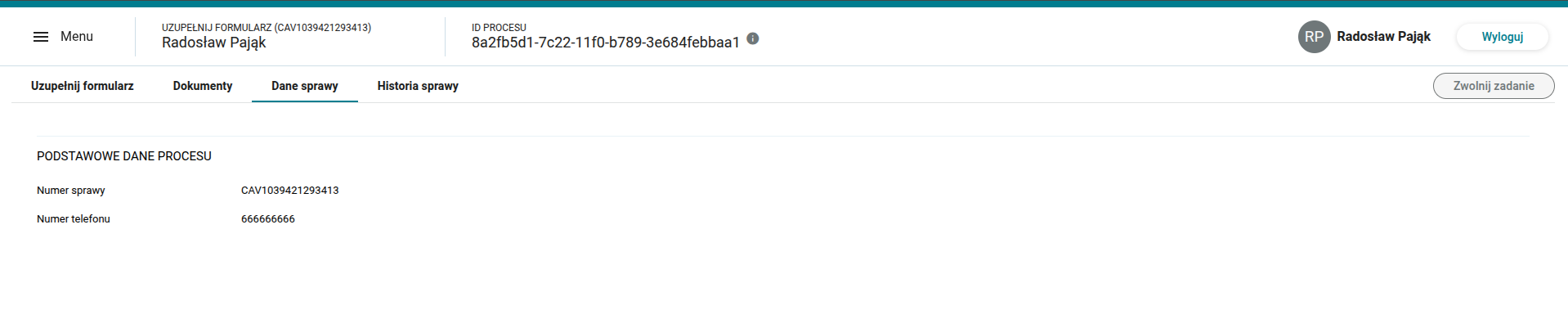
Tab **"Case data"** contains key information about the selected case, allowing a quick preview of the most important process data, such as case number, status, or creation date. It is configurable and enables the presentation of the most relevant business information without the need to browse process details.
Figure 3. Tab "Case data"
***
### Documents
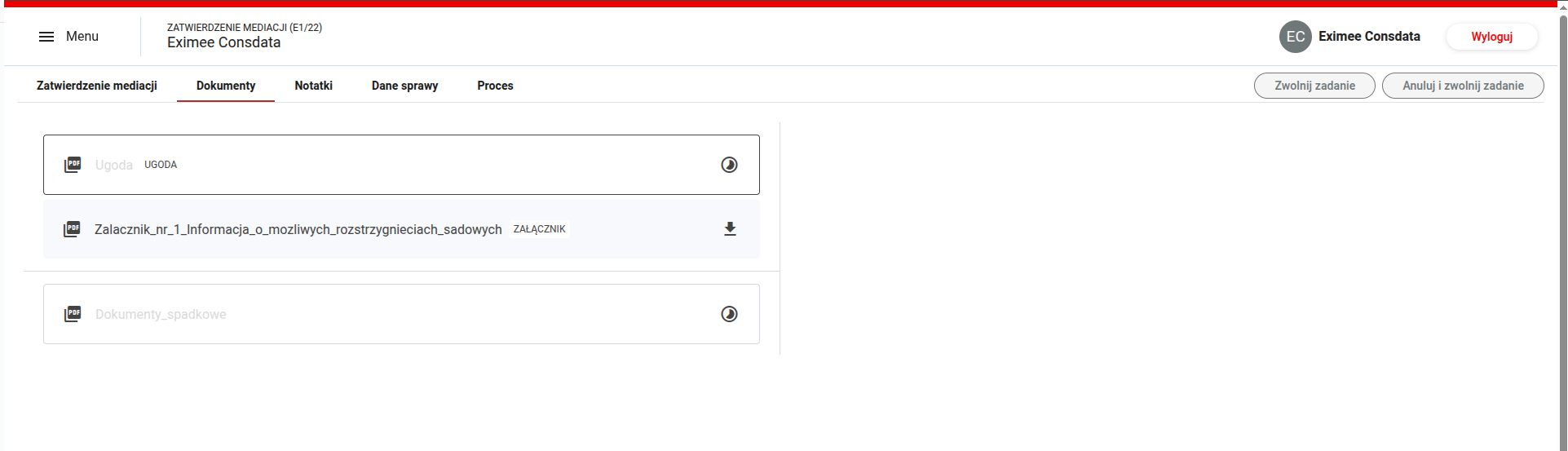
Tab **"Documents"** allows viewing and downloading documents associated with a given case. The user has access to all files related to the process in one place, which makes working with documentation easier and speeds up task completion.
Figure 4. Tab "Documents"
***
### Notes
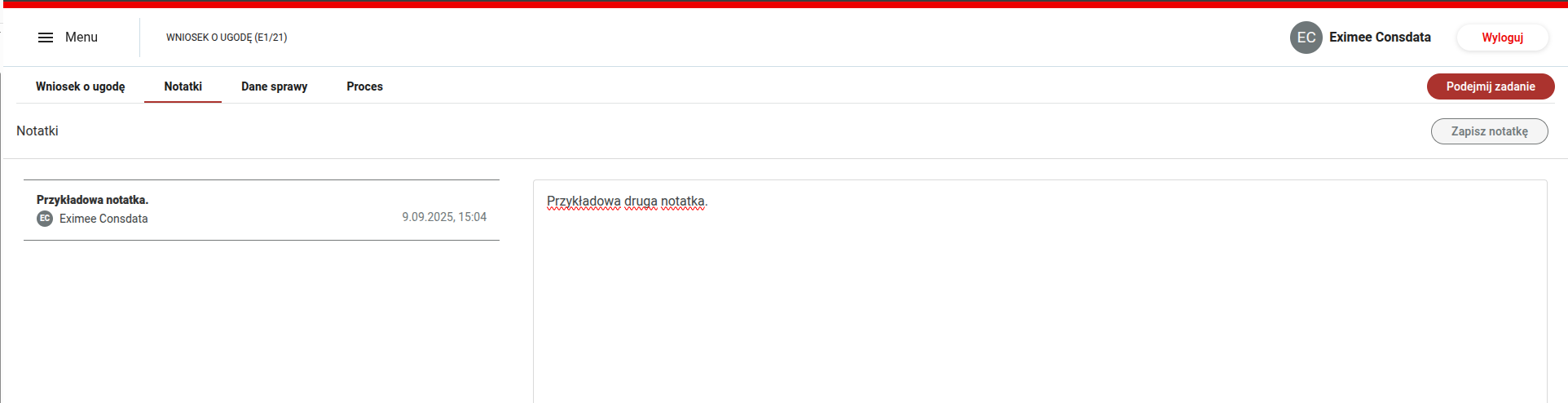
Tab **"Notes"** allows viewing and adding notes associated with the case. Thanks to this, users can save important information, comments, or findings directly in the process context.
Figure 5. Tab "Notes"
***
### Case history
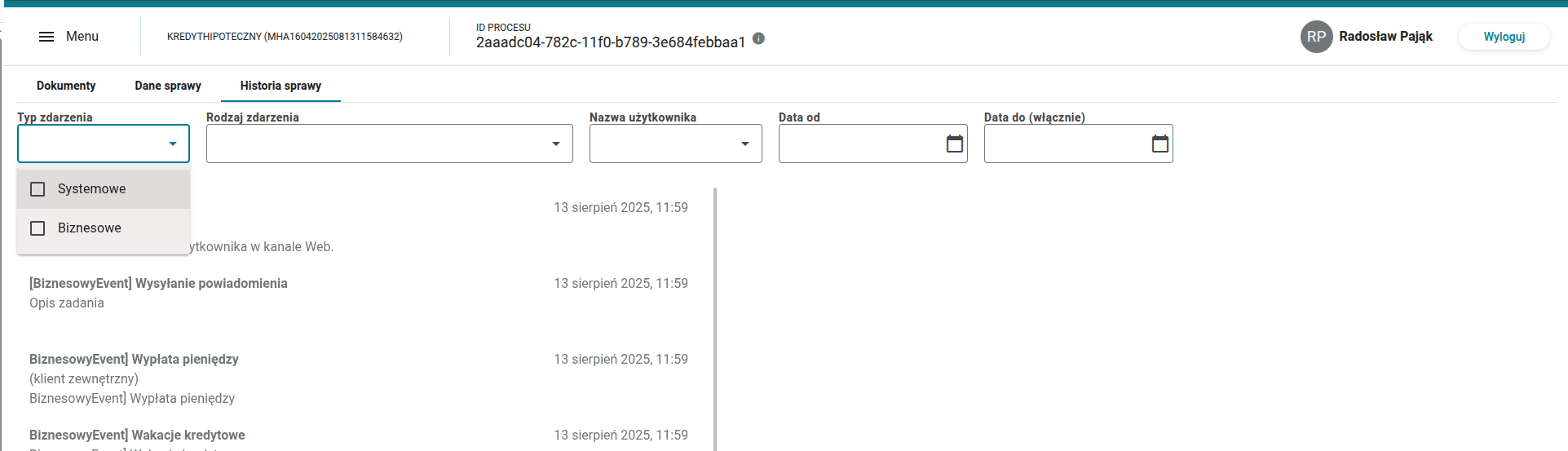
Tab **"Case history"** enables a detailed insight into the process flow by presenting all events related to the case. The events are divided into system and business events, and the user can additionally filter them by various criteria such as event type, user, or date range. This tab is available both from the case list and the task list.
**Configuration:** ["Case History" tab](/documentation/documentation-en/budowanie-aplikacji/interfejs-uzytkownika/eximee-dashboard.md)
Figure 6. Tab "Case history"
\---
The task handling form in Eximee Dashboard is created in the same way as any other form, i.e. using Eximee Designer.
> Please refer to the chapter describing [business processes](/documentation/documentation-en/budowanie-aplikacji/proces-biznesowy.md).
---
# Agent Instructions
This documentation is published with GitBook. GitBook is the documentation platform designed so that both humans and AI agents can read, navigate, and reason over technical content effectively. Learn more at gitbook.com.
## Querying This Documentation
If you need additional information that is not directly available in this page, you can query the documentation dynamically by asking a question.
Perform an HTTP GET request on the current page URL with the `ask` query parameter, and the optional `goal` query parameter:
```
GET https://docs.eximee.com/documentation/documentation-en/budowanie-aplikacji/interfejs-uzytkownika/eximee-dashboard.md?ask=&goal=
```
`ask` is the immediate question: it should be specific, self-contained, and written in natural language.
`goal` is optional and describes the broader end goal you are ultimately trying to accomplish on behalf of the user. GitBook uses it to tailor the answer towards what is most useful for that goal.
The response will contain a direct answer to the question and relevant excerpts and sources from the documentation.
Use this mechanism when the answer is not explicitly present in the current page, you need clarification or additional context, or you want to retrieve related documentation sections.