
Section
A section component that allows grouping other components.

Component properties
Title (section Basic properties)
title
Section title. It is possible to refer to variables or fields in the section title, e.g. ${sessionVariableName} or ${GesTextField1}.
Collapsible section (section Other)
foldable
Specifies whether the section should be foldable. Default is "false" - not foldable.
Section folding condition (section Other)
foldedCondition
Section folding condition - if it is met the section is folded. For presentation=STANDARD the condition is evaluated only at the very beginning and is used only for the initial display of the section. For presentation=LABELS a change in the condition's value causes the section to be modified (folded and unfolded) during the form display.
Graphical representation of the field (section Other)
presentation
Specifying the way of presenting section expansion. Available types of fold/unfold presentation: STANDARD and LABELS (broader description below). Availability of the functionality depends on the license and may not be available in all deployments.
Dynamic section title (section Other)
sectionDynamicTitles
Allows providing section titles that depend on conditions. The first title in order whose condition is met will be displayed. If none of the conditions are met, the title given in the title. It is possible to refer to variables or fields, for example. ${sessionVariableName} or ${GesTextField1}.
More information about component properties: Common component properties
Dependencies of components in the section
When the value of a component on which the section depends changes, the state of the section and all components inside it is recalculated.
When any component in the section changes, the values of all components dependent on it are recalculated.
Arranging components (layout)
A layout can be defined on the section similarly to the layout for the application page (more in: Changing component widths (layout)).
Dynamic feeding of the section title
The section title can be fed dynamically, e.g. using session variables. If in the property title we enter a session variable in the form ${sessionVariableName} then the section title will take the value of the session variable and each time that variable's value changes, the section title will also change.
Another way to dynamically feed the section title is to use the property Dynamic section title (Section - dynamic section titles). In the displayed window each subsequent title is added by clicking the Add dynamic section title. In the column TITLE KEY you should provide a key previously defined in the Translations tab. The key's value will automatically appear in the PREVIEWcolumn. The condition is defined according to the description in Advanced condition editor.
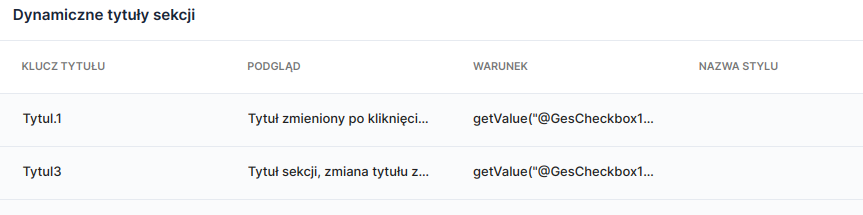
In the property Dynamic section title conditions are defined for which the section title should change. If the condition getValue("@GesCheckbox1")=="Y" is met (i.e. Checkbox1 takes the value Y - is checked) then the section title will take the value (PREVIEW) indicated for the defined key TITLE KEY (that is, in this situation meeting the condition sets the section title to "Title changed after clicking ..."). If the condition is not met, the title specified in the Title.


Section with the ability to fold/unfold
The availability of functionality depends on the license and may not be available in all deployments.
Two types of fold/unfold presentation are available for the section (property Graphical representation of the field):
STANDARD - section folded/unfolded using a button placed at the end of the section

LABELS - section (without a title!) folded/unfolded using the text set in Label of the section fold/unfold button.

In case of a validation error occurring on components located inside a folded section, the user will not be notified in any way and at the same time will not be able to proceed to the next page. It is the form designer's role to provide an appropriate validator on the page.
Demo application: demoSection
Last updated
Was this helpful?