> For the complete documentation index, see [llms.txt](https://docs.eximee.com/llms.txt). Markdown versions of documentation pages are available by appending `.md` to page URLs; this page is available as [Markdown](https://docs.eximee.com/documentation/documentation-en/budowanie-aplikacji/interfejs-uzytkownika/formularze/praca-z-komponentami-bazowymi/zasilanie-wartosciami-z-zewnetrznych-zrodel/przyklad-podpiecia-w-komponencie-uslugi.md).

# Example of attaching a service in a component

### Populating a component with a service

Below is an explanation of how to populate a component with data fetched dynamically from an external service. This ensures that the options list is always up to date and consistent with data from the external system.

**Step-by-step configuration of the sample component:**

1. **Selecting a component:** To select a component, open the request in edit mode in **Eximee Designer** and select the component that is to be populated from the service.
2. **Selecting a data source:** In the **Properties** panel, you need to go to the **Interactions** section and find the field **External data source**. Then click the **Select a service**. A window with a list of available services will open. In the search field, enter part of the name to filter the list of services, and then select the correct service from the list.<br>

   <div align="right" data-full-width="true"><figure><img src="/files/3e40419a2c960e3bef01ad15196ac100072b82a6" alt=""><figcaption><p><em><strong>Figure 1.</strong> External data source selection window after clicking the option "Select service" in the "External data source" field</em></p></figcaption></figure></div>
3. **Description and version (optional):** After selecting a service, a short description of the service's operation should appear below the field (if it has been defined), as well as the service version in the tooltip next to the name.
4. **Invocation condition (optional):** If the service needs to be invoked only in specific situations, an invocation condition should be defined. To do this, click the field **Add condition** and enter a conditional expression in JavaScript (you can use `getValue("COMPONENT_ID")`). When the condition returns true, the service will be invoked.<br>

   <figure><img src="/files/e1e1d0e5bc1a3da71a26d96c3c5c7ecbc9495d63" alt="" width="563"><figcaption><p><em><strong>Figure 2.</strong> Example of an invocation condition for the attached service</em></p></figcaption></figure>
5. **Caching results (optional):** If the selected service returns static or rarely changing data (e.g. a country dictionary from a database), it is worth enabling the cache. The **Cache** option is located next to the service definition – selecting it will temporarily store the result of the service call and reduce the frequency of subsequent calls. **Note**: caching is recommended only for services that retrieve dictionaries or other unchanging data.
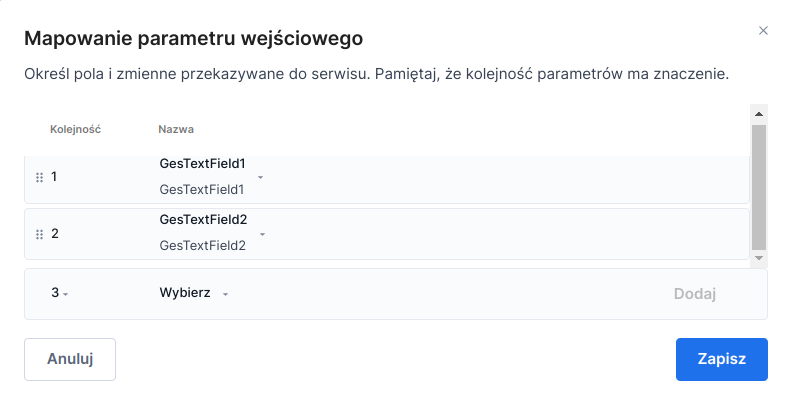
6. **Input parameter mapping:** In the **Input parameters** in the EDS configuration window, the required input parameters of the service must be assigned from the form context. For each parameter, you can select the appropriate form component, a session variable, or enter a constant value. If the service accepts a list of values or multiple parameters at once, it is worth using the **Select multiple** option – it allows you to select several fields and add them one by one (by clicking **Add**) to a single input parameter.<br>

   <figure><img src="/files/a36bfc29fa5241b53ffec4f5778bc060c852f85d" alt="" width="563"><figcaption><p><em><strong>Figure 3.</strong> Window for mapping multiple input parameters available after clicking the "Select multiple" option</em></p></figcaption></figure>
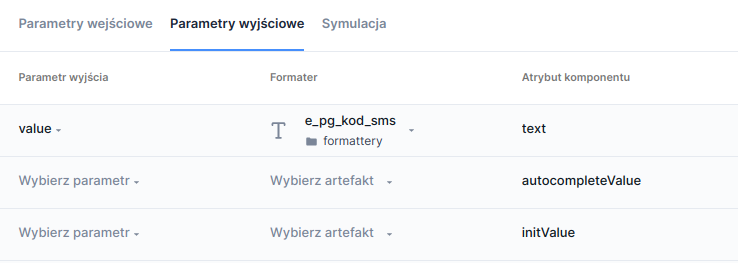
7. **Output parameter mapping:** In the **Output parameters** you need to determine which output fields from the service correspond to which component attributes. The list of available attributes depends on the component type, and the list of parameters depends on the service definition. For example, assign:

   * **Value (id)** – the identifier/key parameter returned by the service,
   * **Label (text)** – the parameter containing the name/description of the item to be displayed,
   * **Additional description (description)** – the optional description parameter (second line).

   For each assigned parameter, you can optionally set a formatter – select the formatter name from the list if the data requires formatting (e.g. date format, number masking).\ <br>

   <figure><img src="/files/a67e69259da2d9fdea79272241fc24eee5a7493b" alt=""><figcaption><p><em><strong>Figure 4.</strong> Example of mapping the output parameter "value" to the "text" attribute and attaching a formatter to the mapped value</em></p></figcaption></figure>
8. **Applying the settings**: After finishing the configuration, save the changes. From that moment on, the component will be populated with data from the attached service. When the Eximee request is displayed, it will invoke the service and automatically fill in the list of values.
9. **Additional settings:**
   * If the service returns additional description for each item (attribute *description*), make sure that in the **Styling** section of the component, the **Additional description position**field is set. Otherwise, the additional description may not be visible.
   * If needed, you can use the **Simulation** tab to attach a script simulating the service's operation. This allows you to test the form without access to the real backend – select an existing simulation script or add a new one in this tab.
   * The service can be removed from the component at any time – in the Interactions section, click the trash icon next to the name of the attached service to disconnect the EDS.

#### Repeatable section as a service input parameter <a href="#przykladpodpieciawkomponencieuslugi-sekcjapowtarzalnajakoparametrwejsciowyuslugi" id="przykladpodpieciawkomponencieuslugi-sekcjapowtarzalnajakoparametrwejsciowyuslugi"></a>

As an input parameter for the service, you can provide the identifier of a field located in a repeatable section. In this case, the service will receive a list of values from the specified field from all rows in the section.


---

# Agent Instructions
This documentation is published with GitBook. GitBook is the documentation platform designed so that both humans and AI agents can read, navigate, and reason over technical content effectively. Learn more at gitbook.com.

## Querying This Documentation
If you need additional information that is not directly available in this page, you can query the documentation dynamically by asking a question.

Perform an HTTP GET request on the current page URL with the `ask` query parameter, and the optional `goal` query parameter:

```
GET https://docs.eximee.com/documentation/documentation-en/budowanie-aplikacji/interfejs-uzytkownika/formularze/praca-z-komponentami-bazowymi/zasilanie-wartosciami-z-zewnetrznych-zrodel/przyklad-podpiecia-w-komponencie-uslugi.md?ask=<question>&goal=<endgoal>
```

`ask` is the immediate question: it should be specific, self-contained, and written in natural language.
`goal` is optional and describes the broader end goal you are ultimately trying to accomplish on behalf of the user. GitBook uses it to tailor the answer towards what is most useful for that goal.

The response will contain a direct answer to the question and relevant excerpts and sources from the documentation.

Use this mechanism when the answer is not explicitly present in the current page, you need clarification or additional context, or you want to retrieve related documentation sections.