
Attachments - UploadFile
File attachment component for the application
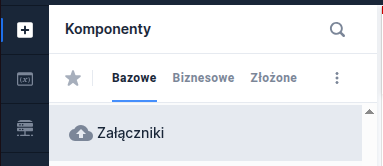
Component properties
Maximum number of attached files (section Basic properties)
numberOfUploadingFiles
The number of files that can be uploaded in the component, default is 1.
Number of required attachments (section Data quality)
requiredCount
The required number of files to attach - default is 0. If 0, no file is required; if greater, it depends on the specified number.
Text displayed when required attachments are missing (section Data quality)
requiredCountError
Requirement message, required if the property is defined Number of required attachments (requiredCount).
Maximum file size (section Data quality)
maxFileSize
Maximum file size in KB. Default is 1024 KB.
Maximum total size of all files (section Data quality)
maxTotalFilesSize
Maximum size of all attached files in KB. Default is 10240 KB.
Show list of allowed extensions (section Interactions)
showExtensionList
Enable the option to display information about allowed formats and the maximum size of the attached file (option is disabled by default). Example information: "Allowed attachment formats: pdf (max. 1 MB)"
Enable image compression (section Interactions)
imageCompressionEnabled
Ability to compress images (default value "false").
Maximum width of webcam photo (section Interactions)
maxWebcamWidth
The availability of the functionality depends on the license and may not be available in all deployments. Maximum width of a webcam photo in pixels.
Maximum height of webcam photo (section Interactions)
maxWebcamHeight
The availability of the functionality depends on the license and may not be available in all deployments. Maximum height of a webcam photo in pixels.
Ability to attach a photo taken with the camera (section Interactions)
webcamEnabledCondition
The availability of the functionality depends on the license and may not be available in all deployments. Condition that enables/disables the ability to upload a photo taken with the device's built-in camera.
List of allowed file extensions (section Security)
validExtensionList
Formats of allowed file extensions, listed comma-separated, e.g.: jpg, jpeg, png, pdf.
Additional validation of PDF files (section Security)
validateContent
Additional validation of the file for PDF FORMAT, not just the extension.
Regular expression to validate the file name (section Security)
allowedFilenameRegexp
Regular expression checking allowed file names. It is possible to override the default validation error message by adding the key to the application translations iew.gwtupload.invalid_filename and setting a new translation value.
Whitelist of characters (section Security)
extraWhitelistCharacters
To allow uploading files containing custom characters, add them to the whitelist of allowed characters. e.g.: (). This configuration extends the webforms.xml configuration ...
Ability to add descriptions to attached files (section Other)
attachmentWithDescription
The availability of the functionality depends on the license and may not be available in all deployments. Displays a description field for each added attachment. Property is disabled by default (set to "false").
Maximum number of characters for attachment descriptions (section Other)
attachmentDescriptionMaxLength
The availability of the functionality depends on the license and may not be available in all deployments. Maximum length of the description that can be entered for an added attachment. Default is 120 characters.
Button label (section Other)
buttonLabel
The availability of the functionality depends on the license and may not be available in all deployments. Text displayed on the file add button.
Field description (section Other)
description
The availability of the functionality depends on the license and may not be available in all deployments. Description text.
Enable image compression (section Other)
The availability of the functionality depends on the license and may not be available in all deployments. Property that allows reducing attached images.
Document type - advanced integration (section Other)
documentType
Technical field used for advanced integration (requires additional implementation). The availability of the functionality depends on the license and may not be available in all deployments.
Contact number - advanced integration (section Other)
contractNumber
Technical field used for advanced integration (requires additional implementation). The availability of the functionality depends on the license and may not be available in all deployments.
Process type (section Other)
processType
Name of the process passed to the service that saves the attached file in an external resource. The availability of the functionality depends on the license and may not be available in all deployments.
Call to external validator for the added file
singleFileValidator
Call to an external validator for the added file. The validator is called when attempting to add each file (if the attachment does not pass validation, it is rejected). The property should be added from the XML Source level.
More information about component properties: Common component properties
Using the component
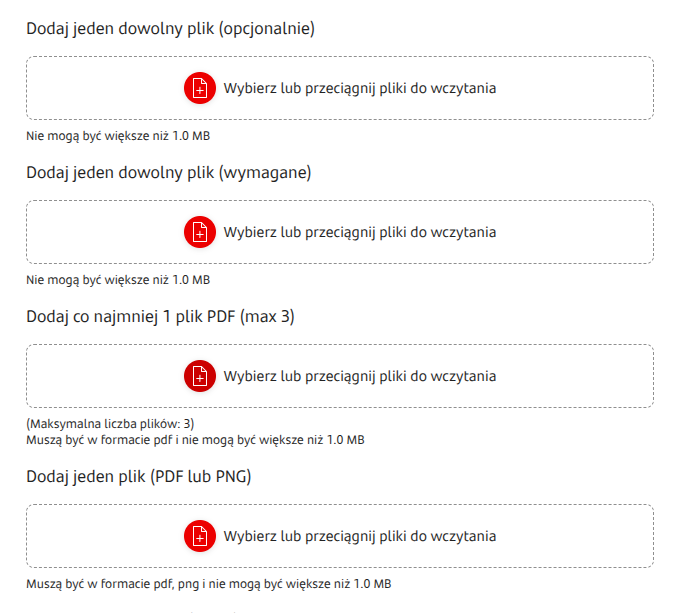
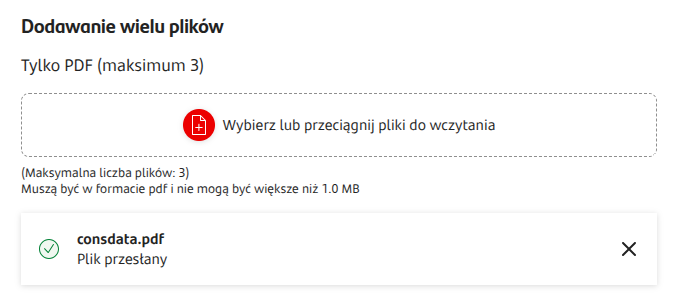
Description for attached files
The availability of the functionality depends on the license and may not be available in all deployments.
You can add a description to an attached file. To do this, check the field Ability to add descriptions to attached files (attachmentWithDescription) (field is disabled by default). The length of the added description can be set in the field Maximum number of characters for attachment descriptions (attachmentDescriptionMaxLength).
Component input parameters
maxFileSize
Maximum file size in bytes
validExtensionList
List of allowed extensions (one extension per line)
maxWebcamWidth
Maximum width of webcam photo in pixels
maxWebcamHeight
Maximum height of webcam photo in pixels
Component output parameters
totalFilesSize
Sum of sizes of all files added using the uploader component
fileNames
Retrieves the names of files added to the control. Data is returned in JSON format: ["fileName1", "fileName2", ...]
externalIds
Identifiers of files from an external service, similarly returned in JSON format.
If we want to display the sum of sizes of all files in a component, e.g. a Text Field, we can do this using the property DATA SOURCE FROM ANOTHER FIELD (valueSourceId) of the component that should display the value. For this purpose the property DATA SOURCE FROM ANOTHER FIELD we assign the following value: GesUploadFile1$totalFilesSize where GesUploadFile1 is the identifier of the attachment component, while totalFilesSize is the property of that component whose value will be written. Overwriting the value also requires listening to the attachment component.
Defining an action to clear the component
For the component it is possible to define on the main application template an action that clears the component of the attached file. More information in Actions.
Demo application: demoUploadFile
Last updated
Was this helpful?