Actions

Actions Section

has a globally set number of columns (shared across the entire page). Actions allows adding actions for selected components that initiate events to the form.

To define an action on the form, first add in the form the component for which you want to define the action (e.g. Trigger) and the component to which the action applies (e.g. Popup).

Illustration 1. Section with defined actions

Add action

After clicking the Add action at the top of the section above the other actions (if there were any on the form already), an empty row is added in which we first choose the action source in the field Select action source. The list will contain only those form components for which an action can be defined.

Illustration 2. Row for defining a new action

Illustration 2. Row for defining a new action

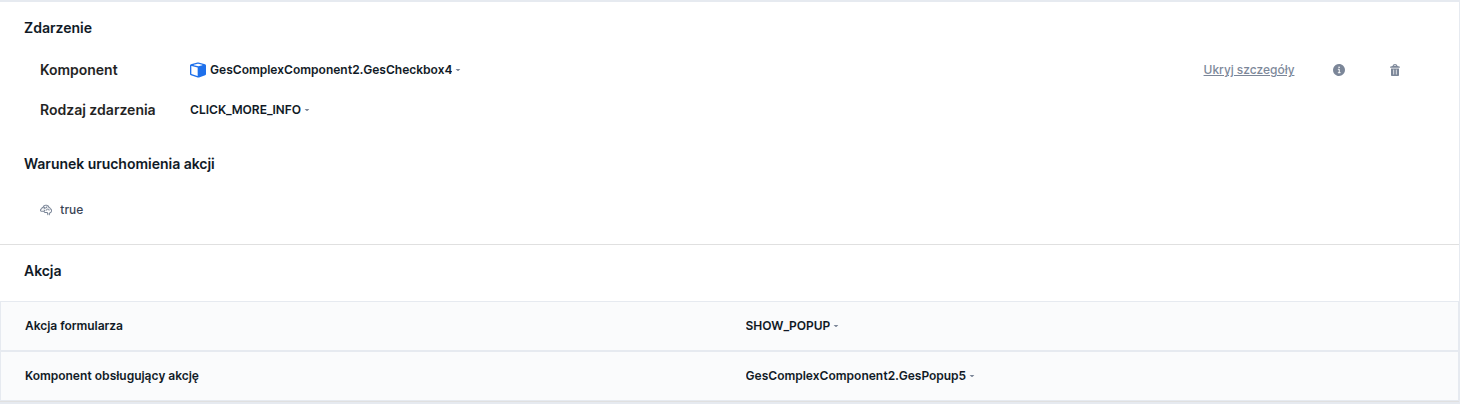
Illustration 3. Example row of a SHOW_POPUP action when the checkbox is clicked

Defining the event for the Next button

When defining an action for clicking the Next button, remember to also provide an action that will execute when the condition specified for the action is not met, otherwise the user would not be able to proceed to the next page when the event condition is unmet. It is enough to add an action with the inverse condition for the FORWARD_PAGE action.

Illustration 4. Example of a popup opening action for the clicked Next button on Page1
Illustration 5. Example of an action with the inverse condition allowing to proceed normally from Page1

Demo form: demoPopup

Defining actions for the Statements component

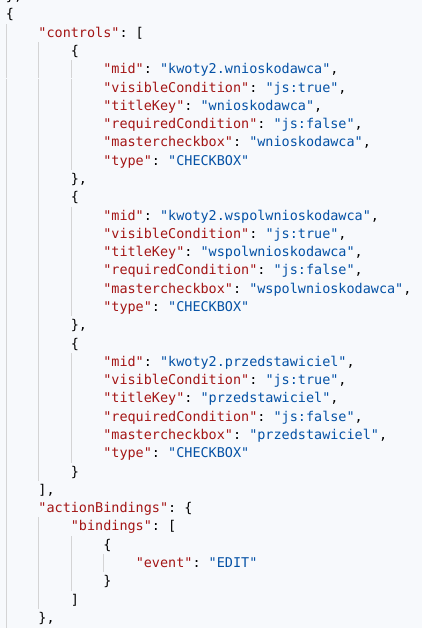
For Statements - Statements in a specific statement you should in actionBindings add an event equal to EDIT. A statement that has such an event defined will have a special data edit option displayed, whose click will display a popup.

Illustration 6. Example of a statement with a defined action

Demo form: demoStatementsPopup

Defined events for the Slider

Slider is able to handle an event defined in the validator (it must send the EMIT_EVENT action in the error message). When adding an action, in the action dropdown you should choose the item from the list of allowed events, which in turn is defined in the validator implementation.

Defined events for context help of Text Field and Combobox

For components: Text Field - TextField and Value selection from list - Combobox containing a label you can define an action to open a popup when the context help button is clicked. Before defining the action you should add context help (tooltip) to the component.

Illustration 7. Example of an action defined for a tooltip of the Text Field component

Demo forms: demoTextField, demoCombobox, demoPopup

PageService as an action

If we define a PageService on the form we can select it in the Properties - after selecting it it is possible to choose the CALL action.

Action redirecting to a defined returnUrl

It is possible to attach an action (e.g. to a Trigger click) that will initiate a redirect to returnUrl (REDIRECT_TO_RETURN_URL), whose value is taken from a session variable with that name (session variable returnUrl must be exposed).

Action redirecting to a defined URL

It is possible to attach an action (e.g. to a Trigger click) that will initiate a redirect to a URL provided by the user, whose value is determined at the time of defining the action - REDIRECT.

The action will execute even if some validator highlights some data as invalid.

Parking action upon entering a specific page

It is possible to define a parking action upon entering a specific page: PARK_FORM_WITH_PROVIDED_HASH. You should then specify the action for the page component (e.g. with the event ON_PAGE_ENTER). For the parking mechanism to work, remember to set the value of the session variable hashForUnparking, which is needed to unpark the form.

Action to enter a new form prepopulated with the data model from a given process

It is possible to define an action to enter a new form that will be initially fed with the data model from a specific process. You should then specify the START_FORM_BASED_ON_PROCESS action on the Trigger component. As part of this action you need to configure the form name (formName) and processInstanceId, from which the model will be retrieved. Remember that processInstanceId must point to a session variable, because only the session variable is supported. Currently action configuration is not possible from the Designer; you should use the "Source" tab. Below is an example configuration.

Actions - starting an Application

The availability of functionality depends on the license and may not be available in all deployments.

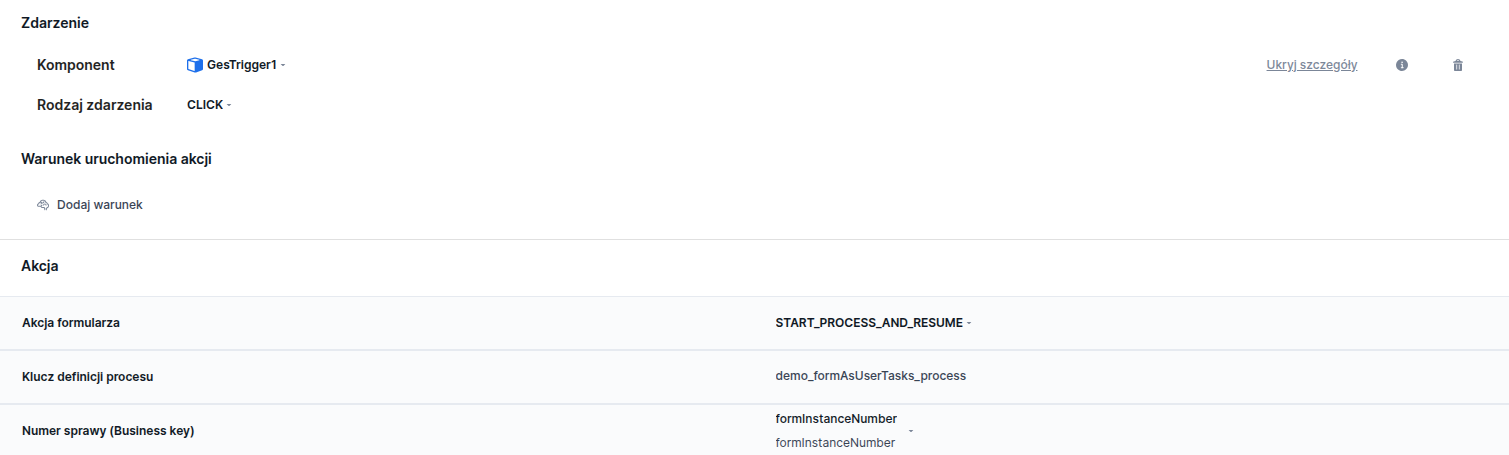
The START_APPLICATION action is responsible for starting the process set as the entry point.

Illustration 8. Row defining the START_APPLICATION action

The START_APPLICATION action accepts the following parameters:

Application name

Indication of the process to be started.

Redirect to the next step of the process

JAVASCRIPT condition. Indicates whether automatic redirection to the next user task should occur. Default value: false

Example components that send events

Component (Action source)
Possible event
Description

Page (page)

NEXT

Action for clicking the next button on the form page

ON_EXIT

Action on exiting the page

ON_PAGE_ENTER

Action on entering a specific page

SAVE_DRAFT

Action for clicking the save draft button on the form

Popup

SAVE

Action for clicking the save button on a Popup component

HIDDEN

Statements

EDIT

Action for clicking the edit button on the statements component

Statements fed from a service (FedStatements)

EXPAND_STATEMENT

Action for clicking the expander on the fed statements component

Text Field (GesTextField)

TOOLTIP_CLICKED

Action for clicking the component's tooltip

Combobox (GesCombobox)

TOOLTIP_CLICKED

Action for clicking the component's tooltip

VALUE_CHANGED

Action on combobox value change

Trigger

CLICK

Action on component click

Checkbox

CLICK_MORE_INFO

Action for clicking the more info link of the checkbox component

CHECK

Action on checking the checkbox

UNCHECK

Action on unchecking the checkbox

RadioGroup

VALUE_CHANGED

Action on component value change

ComboBox

VALUE_CHANGED

Action on component value change

ComboBox

TILE_CLICKED

Action on clicking a single tile in a tile group

Example components that receive events

Component handling actions
Type of form action
Description

Checkbox

CHECK

Checking the checkbox

UNCHECK

Unchecking the checkbox

TOGGLE

Changing the checkbox value to the opposite

Statements fed from a service (FedStatements)

CHECK_FED_STATEMENT

Marks the required statement from the list of statements

Page (page)

FORWARD_PAGE

Move to the next page (equivalent to clicking the Continue, Submit application button, etc.)

BACKWARD_PAGE

Move to the previous page (equivalent to clicking the Back, Back button, etc.)

REDIRECT_TO_RETURN_URL

Redirect to the URL defined in the session variable returnUrl

REDIRECT

Redirect to the URL defined in the field available after choosing the REDIRECT action type

SAVE_DRAFT

Save form draft

PageService

CALL

Service call

Popup

SHOW_POPUP

Open the popup component defined in the Component handling the action

CLOSE_POPUP

Close the popup component

SAVE_POPUP

Save the popup component

Attachments (Uploadfile)

CLEAR_UPLOAD_FILE

Clearing an added attachment (works for the ON_PAGE_ENTER action)

Form

PARK_FORM_WITH_PROVIDED_HASH

Parking the form

Trigger

START_APPLICATION

Starting the process (the process set as the entry point) indicated in the applicationName of the

Trigger

START_FORM_BASED_ON_PROCESS

Action to start a new form (parameter formName) populated with the model from the given process instance (parameter processInstanceId).

Demo forms: demoActions, demoTooltips

Last updated

Was this helpful?