
Value selection from list - Combobox
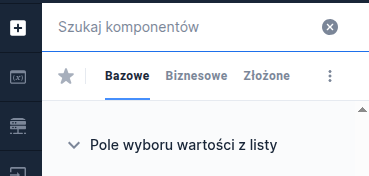
Value selection field from a list
The value selection field from a list is a component that requires being fed a data source. To do this, in the component's Properties panel go to the Interactions section and select External data source. Then in the window that appears click Select service and search the list for the appropriate dictionary, service or script. Each of these items is marked by a different icon on the list. After selecting the appropriate data source, its name and type information appear in the External data source section:
DICTIONARY - if a dictionary was selected,
EDS - if a service was selected,
SCRIPT - if a script service was selected.
Details: Connecting a dictionary data source.
Component properties
Number of characters to start searching (section Basic properties)
minTextLenghtToSearch
Specifies after how many entered characters the component's values should be searched. The availability of this functionality depends on the license and may not be available in all deployments.
Enabling the search option (section Basic properties)
searchable
Enabling the search option (by default the property is unchecked) - depending on the license and/or channel:
when the property is set to "true" - after clicking the component, a field to enter the search value is displayed
if this property is absent - after clicking the field, typing characters (which are not displayed) filters the values.
Field description (section Data quality)
description
Text displayed as the field description below it; by default this is an empty value. The availability of this functionality depends on the license and may not be available in all deployments.
Additional description position (section Styling)
descriptionPosition
Description position (choose from values NONE, BOTTOM and RIGHT). To display the dictionary with a description you must connect a dedicated service (field External data source). The availability of this functionality depends on the license and may not be available in all deployments.
Label for a single item in the list (section Others)
singleValueLabel
Determines the component's behavior when there is only one item in the list. If the option is selected, the dropdown list is replaced by a label (by default the property is unchecked).
Content presentation adapted to field size (section Others)
truncateContent
This property allows limiting the presentation of the selected value to as many characters as fit in the standard size of the component added to the application. All characters exceeding that size will be replaced with an ellipsis (...). The property is enabled by default. If the property is unchecked, the component height will be adjusted to the size of the text in the selected value. The availability of this functionality depends on the license and may not be available in all deployments.
Native on mobile (section Others)
nativeOnMobile
Determines whether a native component is displayed in the mobile version "". Unchecking the property causes a popup to be displayed for every device (the property is enabled by default). The availability of this functionality depends on the license and may not be available in all deployments.
Additional label (section Others)
descriptionLabel
This is an additional description related to the component. It is subordinate to the Labelproperty. The availability of this functionality depends on the license and may not be available in all deployments.
Displaying "Select..." (section Others)
emptyOption
Displaying the option "Select..." as the first item of the component (the property is enabled by default). Unchecking the property causes the first dictionary element to be displayed.
Alternative text for "Select..." (section Others)
emptyOptionCustomText
Text displayed instead of "Select..." when the "Display 'Select...'" option is selected.
Hiding "Select..." from the list of available options
hideEmptyOptionOnList
Hides the default value "Select..." in the selection list (the property is unchecked by default). For this property to make sense, the Displaying "Select..."property. The availability of this functionality depends on the license and may not be available in all deployments.
Dictionary list height
listHeight
Height of the dictionary list (default value -1). The availability of this functionality depends on the license and may not be available in all deployments.
Width of the dictionary list
listWidth
Width of the dictionary list (default value -1). The availability of this functionality depends on the license and may not be available in all deployments.
Graphical representation of the component
presentation
Graphical representation of the component (choose from values STANDARD, WHEEL, VARIANT 2.0). The value STANDARD determines the standard appearance of the component, WHEEL is the presentation of the component as a scrollable wheel (available only in selected deployments). The value VARIANT 2.0 determines the new appearance of the component (available only in selected deployments).
More information about component properties: Common component properties
Component output parameters when fed from a script
id
Identifier of individual items
text
Label of individual items
description
Additional label of individual items
value
Component value
iconUrl
URL pointing to the graphic displayed as an icon in the field. The availability of this functionality depends on the license and may not be available in all deployments.
initValue
Initial value
metadata
Additional data of an individual item used for collecting metrics. The availability of this functionality depends on the license and may not be available in all deployments.
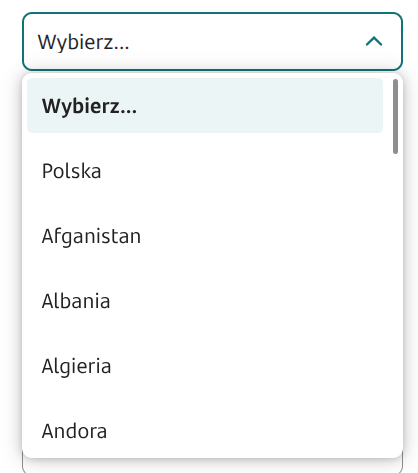
Values in the dictionary will always be displayed in the order they appear in the feeding source.
Example of fields with additional description
In Combobox components you can connect scripts to the External data source that return other values for the field beyond the key (id) and label, e.g. a description. To make the description visible, besides providing the parameter, you must also set the Additional description position (Styling). For example, a Combobox field can be fed by a script with basic output parameters for the field id (cardId) and field name (cardName) and with the Additional field position set to BOTTOM (Styling).
Sample implementation of a feeding script with additional output parameters for the field description (cardDesc) and field icon (cardIcon):

Sample implementation of a feeding script with an additional output parameter for the field description (description):

Demo application: demoCombobox
Last updated
Was this helpful?