# Attaching a dictionary data source

Eximee enables form components to be populated with data coming from *dictionaries* — that is, predefined lists of values maintained in the **Library** of the platform. Dictionaries are convenient for drop-down lists or radio button groups, as they centrally manage sets of options (e.g., a list of countries, a list of document types). Updating a dictionary in one place can automatically affect all applications that use it.

**Step-by-step configuration:**

1. **Preparing the dictionary:** Make sure that the required dictionary has been created in the system (in the **Dictionaries** Eximee library module). Check whether it contains the current keys and values, and if necessary create a new dictionary according to the requirements (e.g., CountryList with country codes and names).
2. **Selecting a component:** In Eximee Designer, select the component that is to be populated from the dictionary. These may be: **Value selection field from a list** (Combobox), **Text field**, **Radio group** or **Checkbox group** — all these types support dictionary sources.
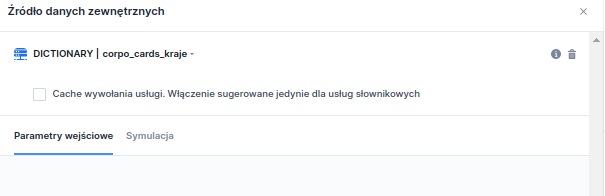
3. **Selecting a dictionary as EDS:** In the **Properties** → **Interactions** of the component, click in the **External data source** and select **Select service**. In the list of available sources, find the name of the appropriate dictionary. The dictionary appears on the list just like services. After selecting the dictionary, its name will appear in the **External data source** field.<br>

   <figure><img src="https://2112972046-files.gitbook.io/~/files/v0/b/gitbook-x-prod.appspot.com/o/spaces%2F2CssJT0zIo4SJQLbSZ6l%2Fuploads%2FMYy6lF347vIcmOUYBrTk%2Fimage.png?alt=media&#x26;token=f3aaca63-ca97-49ff-be3e-79ba07b974d1" alt="" width="454"><figcaption><p><em><strong>Figure 1.</strong> External data source selection window with the selected dictionary</em></p></figcaption></figure>
4. **Parameter mapping (conditional dictionaries):** For a standard dictionary (without conditions), no mapping is required — the component automatically retrieves all keys and values. However, if a conditional dictionary is used, parameters to be mapped will appear in the **Input parameters** tab. These are usually other form fields on which the dictionary content depends (e.g., a Cities dictionary dependent on the selected Voivodeship). In such a case, appropriate components should be assigned to the parameters, similarly to service input mapping.<br>

   <figure><img src="https://2112972046-files.gitbook.io/~/files/v0/b/gitbook-x-prod.appspot.com/o/spaces%2F2CssJT0zIo4SJQLbSZ6l%2Fuploads%2FuYdhWetqWy8XYWlwV3Yf%2Fimage.png?alt=media&#x26;token=450b326b-e5c7-4391-b725-0e38633c57e8" alt=""><figcaption><p><em><strong>Figure 2.</strong> Example of mapped input parameters for a dictionary with defined key display conditions</em></p></figcaption></figure>
5. **Save:** After completing the configuration, save the changes. While the application is running, the component will be automatically filled with data from the dictionary. In the case of a conditional dictionary, the list of values will be refreshed automatically when the field it depends on changes (e.g., changing the Voivodeship will reload the Cities list).

### Script integration <a href="#podpiecieslownikowegozrodladanych-podpiecieskryptu" id="podpiecieslownikowegozrodladanych-podpiecieskryptu"></a>

The data source for a component populated from a dictionary source can also be a script service. This solution makes it possible to write a script that can, for example, calculate dictionary values based on an input parameter or return different values for different languages.

<figure><img src="https://2112972046-files.gitbook.io/~/files/v0/b/gitbook-x-prod.appspot.com/o/spaces%2F2CssJT0zIo4SJQLbSZ6l%2Fuploads%2FurPzNRIj7E96lHaPii1Q%2Fimage.png?alt=media&#x26;token=15290317-d861-4932-8e68-3ffc1145251c" alt="" width="563"><figcaption><p align="center"><em><strong>Figure 3.</strong> Example script returning a dictionary with input parameters</em></p></figcaption></figure>
