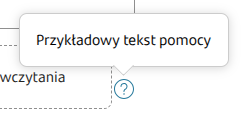
Contextual help

Most components in Eximee Designer have the ability to define contextual help. Exceptions are components QR code generator and Page.

Illustration 1. Appearance of the property that provides access to the contextual help editor

Upon entering the contextual help editor, a drawer slides out. When a component has no contextual help added, the drawer content looks like in the illustration below.

Illustration 2. Appearance of the editor drawer without added contextual helps

Clicking the button located at the bottom of the drawer Add contextual help adds an item to the drawer. It represents a new contextual help.

Illustration 3. Appearance of a newly added and unconfigured contextual help

The basic editable properties are the name of the contextual help key and the condition for its display.

Before adding a key with contextual help content, the key and its content must be added in the Translationstab. Editing is performed by clicking in the Provide key name.

In the field Add condition you can define dynamic contextual help with content dependent on conditions:

  • values of session variables,

  • values of other components.

If several contextual helps are defined, only the first contextual help whose condition is met will be displayed. To change the order of help contents you can use the drag & drop functionality.

Illustration 4. Example of two different contextual helps defined and displayed conditionally

Clicking Show details expands the tile and allows access to additional options, visible in the illustration below:

Illustration 5. Appearance of the expanded contextual help edit window

In the detailed view it is possible to define the following properties:

  • Style name - name of the style to apply to the contextual help,

  • Help icon - determining whether the contextual help icon should be displayed,

  • Visible on field focus - determining whether the contextual help should be displayed during focus,

  • Interactive contextual help - determining whether it will be possible to interact with the contextual help content,

  • Width/Height of the contextual help bubble,

  • Position of the contextual help relative to the component it refers to.

In the contextual help editor drawer you can define multiple tooltips. They are then evaluated in order from top to bottom. Each contextual help tile has a handle on the left that allows you to grab it and then move it to the desired position. In this way you can order the entire list and change the order of items.

Visibility of contextual help

In the detailed view you must specify one of two ways of presenting contextual help:

  • Help icon,

  • Visible on field focus.

The visibility of contextual help is also controlled by an optional condition.

Illustration 6. Sample appearance of a tooltip on the application
Illustration 7. Sample appearance of a tooltip on the application

Demo application: demoTooltips

Last updated

Was this helpful?