> For the complete documentation index, see [llms.txt](https://docs.eximee.com/llms.txt). Markdown versions of documentation pages are available by appending `.md` to page URLs; this page is available as [Markdown](https://docs.eximee.com/documentation/documentation-en/budowanie-aplikacji/interfejs-uzytkownika/formularze/praca-z-komponentami-bazowymi/zasilanie-wartosciami-z-zewnetrznych-zrodel/podpiecie-suggestera-komponent-z-podpowiedziami.md).
# Attaching the Suggester – a component with hints
{% hint style="info" %}
The availability of the functionality depends on the license and may not be available in all deployments.
{% endhint %}
*Suggester* is a special type of external data source used mainly for text fields. Its purpose is to suggest or automatically correct the value entered by the user, according to a specific algorithm. The Suggester works on the server side – when the user enters data and leaves the field, the suggester service can, for example, modify that value (enforcing a specific format, range, etc.) or suggest another one.
**Step-by-step configuration:**
1. **Component selection:** You need to select a component of type **Text field** (TextField), for which the suggestion or correction mechanism is to be enabled.
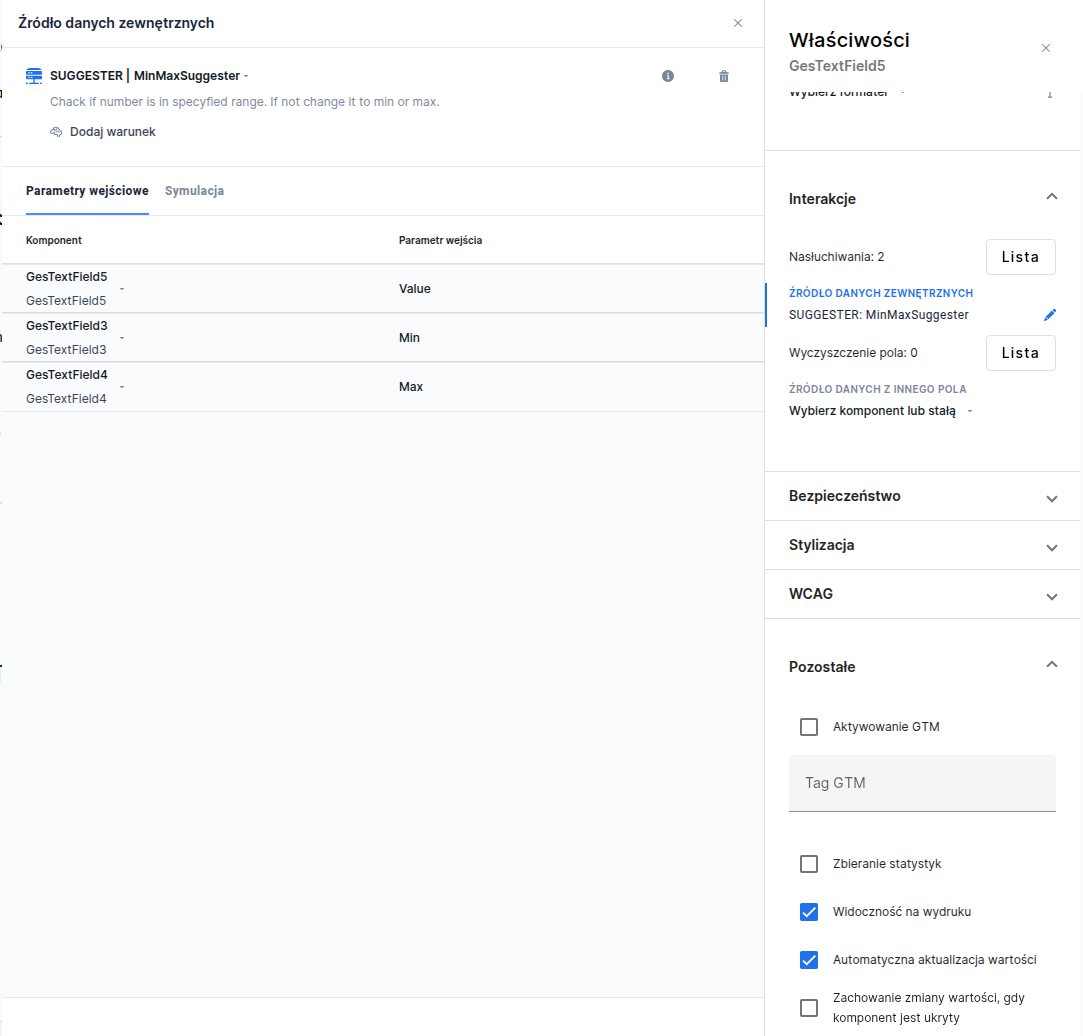
2. **Suggester selection:** In the Properties panel, go to the Interactions section. In the **External data source** field, click **Select service**, and then choose the appropriate **Suggester**. After connecting it, the suggester identifier should appear in the field (e.g., its name).
3. **Automatic value update:** In the Other properties section of the text field, check the option **Automatic value update** (autoServerUpdate). This setting causes the value to be sent to the server after each end of field editing (e.g., when leaving the field or losing focus). This way, the suggester will receive the value entered by the user and will be able to return a potentially modified one. If the autoServerUpdate option is not enabled, the suggester will not work – the field value change will not be recorded on the server side.
4. **Configuration completion:** After finishing the configuration, save the changes. From that moment on, the text field will be linked to the Suggester. When the user enters a value and finishes editing (e.g., moves to the next field), the suggester mechanism will process the entered value. If it requires correction, the system will automatically replace it with the suggested one (e.g., increase it to the minimum allowed value). The suggester can also display messages to the user – for example, information about the correction made.
5. **Message customization:** If the suggester has default messages (e.g., in English), it is worth translating them into Polish. To do this, go to the **Translations** tab in the application editor and find the message keys associated with the given **Suggester**. Then add the appropriate translations into Polish.
Figure 1. Example of a connected suggester in Eximee Designer
{% hint style="info" %}
Demo application: demoSuggester
{% endhint %}
---
# Agent Instructions
This documentation is published with GitBook. GitBook is the documentation platform designed so that both humans and AI agents can read, navigate, and reason over technical content effectively. Learn more at gitbook.com.
## Querying This Documentation
If you need additional information that is not directly available in this page, you can query the documentation by asking a question.
Perform an HTTP GET request on the following URL with the `ask` and `goal` query parameters:
```
GET https://docs.eximee.com/documentation/documentation-en/budowanie-aplikacji/interfejs-uzytkownika/formularze/praca-z-komponentami-bazowymi/zasilanie-wartosciami-z-zewnetrznych-zrodel/podpiecie-suggestera-komponent-z-podpowiedziami.md?ask=&goal=
```
`ask` is the immediate question: it should be specific, self-contained, and written in natural language.
`goal` is what the user is ultimately trying to achieve, the reason they need the answer. Sharing it helps GitBook give you a better, more relevant answer. A goal is most helpful when it describes the outcome the user wants rather than restating the question. For example, with `ask=how do I create an API token`, a goal like `automate deployments from our CI pipeline` lets GitBook tailor the answer to that use case.
The response will contain a direct answer to the question and relevant excerpts and sources from the documentation.
Use this mechanism when the answer is not explicitly present in the current page, you need clarification or additional context, or you want to retrieve related documentation sections.