> For the complete documentation index, see [llms.txt](https://docs.eximee.com/llms.txt). Markdown versions of documentation pages are available by appending `.md` to page URLs; this page is available as [Markdown](https://docs.eximee.com/documentation/documentation-en/budowanie-aplikacji/interfejs-uzytkownika/formularze/praca-z-komponentami-bazowymi/dodawanie-i-parametryzowanie-komponentow.md).
# Adding and parameterizing components
### Adding a new component
A new component can be added in edit mode using the component palette on the left. To do this, drag the selected component from the palette and drop it in the appropriate place on the application.

### Edit mode and moving a component
To move components comfortably around the application area, it is worth enabling the layout grid mode with the button **Layout grid**  located in the lower-left corner of the application. After clicking it, a grid will appear on the application, making it easier to place and resize components ([Layout grid / template](/documentation/documentation-en/budowanie-aplikacji/interfejs-uzytkownika/formularze/tworzenie-formularza/siatka-layoutu-szata.md)).
To move a component, hold down the mouse button over it and drop it in the desired place. Two-colored fields will light up above the lifted component:
* green: indicates a correct place for the inserted component,
* red: incorrect place (e.g. we are trying to place one component on top of another or place a component inside an embedded composite component or radio group).
If we want to drop a component on a new line, we should hover over the space between components. This space will expand, making it easier to drop the component.
After moving the last component from a given row, that row will be automatically removed.

### Possible component moving operations
| Source location of the component | Target location of the component | Component type | Possible |
| -------------------------------- | -------------------------------- | -------------- | ----------------------------------------------------------------------------------------------------------------- |
| page | page | all |  |
| page | section | all |  |
| section | page | all |  |
| section | section | all |  |
| composite component | anywhere | all |  |
| anywhere | composite component | all |  |
| checkbox group | anywhere | checkbox |  |
| radio group | anywhere | radio |  |
| tile group | anywhere | tile |  |
### Changing the component width
[Changing component widths (layout)](/documentation/documentation-en/budowanie-aplikacji/interfejs-uzytkownika/formularze/praca-z-komponentami-bazowymi/zmiana-szerokosci-komponentow.md)
### Going to the content editor of the content placed on the application/in the component
In the context menu of the formatted content component, there is an option to open the linked artifact in the content editor.
Selecting **Go to content source** takes the user to the content editor in the library.
The option **Go to content source** is available only when an artifact in name-version format is attached to the component.

### Going to the source editor of a composite/business component
In the context menu of the embedded composite/business component, there is an option to open the attached artifact in the component editor.
Selecting **Go to component source** takes the user to the composite/business component editor in the library.

### Component properties panel
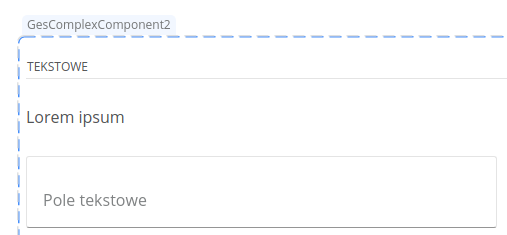
After clicking a component placed in the workspace, the attribute editing panel for that component opens (the selected component is marked with a dashed border).
To switch to displaying parameters for a composite or business component, select it by clicking the handle that appears above the component on the left side.
Figure 5. Presentation of the selected composite component on the form.
Properties are grouped into sections. Clicking on an area not occupied by any component or outside the page area allows you to preview the properties of the entire page.

#### Inheritance of the number of columns
Composite components (e.g. tile group, radio group) can have the property **Inheritance of the number of columns**. It makes the column widths in the component the same as in its parent. This is achieved by ensuring that the width of the component will always correspond to the number of its columns. When changing the width of such a component, columns will be added or removed accordingly. Because of this, the width of the component can be reduced only when it contains empty columns.

The option to enable inheritance of the number of columns is active only when the component width is the same as the number of columns. Changing the number of columns from the attribute editor disables the property in question.

Usage example:
Consider the case of expanding a composite component by 3 cells, whose width and number of columns are equal to 3.
Component with the "Inheritance of the number of columns" property
| Before change | After change |
| --------------------------------------------------------------------------------------------------------------------------- | -------------------------------------------------------------------------------------------------------------------------- |
|  |  |
After expansion, the number of columns is still equal to the width. 3 additional empty columns have been created.
Component without the "Inheritance of the number of columns" property
| Before change | After change |
| -------------------------------------------------------------------------------------------------------------------------- | --------------------------------------------------------------------------------------------------------------------------- |
|  |  |
The expansion did not change the number of columns in the component and there are still 3. The width of the component has been increased to 6. Each component column is now stretched across two page cells.
#### Mapping a value to an external data model field
{% hint style="info" %}
Availability of functionality depends on the license and may not be available in all deployments.
{% endhint %}
The external data model field to which the component value will be mapped can be selected in two ways:
* from the selection field,
* from the tree.
The defined mappings are added at the end of the unconditional mapping group.

Only field mappings that have no more than one mapping defined can be edited. Otherwise, the editor will display a button redirecting to the tab **Data model**, which allows defining more complex mappings.

The mapping editor is visible only when the application has at least one external system process defined.
### Deleting components from the page
Components can be deleted by clicking the menu button located in the upper-right corner of the selected component and then selecting the option **Delete**. If the component cannot be deleted, the delete icon is not displayed.
Figure 11. Deleting a component
### Undoing operations
The user can use the option to undo any change made while working with the working copy (since its creation). To undo the effects of the last action, just press the button **Undo changes** located in the upper-right corner of the editor, or use the keyboard shortcut Ctrl + Z.

While undoing an operation, all interactions with the editor are blocked. Changes can be undone any number of times (until the original state of the artifact is restored).
Note: operations are undone independently of the currently open tab. E.g. if the user makes a change in the tab **Data model**, and then goes to the tab **Steps**, undoing changes will undo the change from the first tab.
### Saving versions
To save a new version of the artifact, press the icon **Save**  located on the right side of the top bar. This will open a popup where you can fill in the change description and choose whether to save the artifact in the existing branch (MINOR) or create a new branch (MAJOR). When saving a new version of the application, it is automatically published.
.png)
---
# Agent Instructions
This documentation is published with GitBook. GitBook is the documentation platform designed so that both humans and AI agents can read, navigate, and reason over technical content effectively. Learn more at gitbook.com.
## Querying This Documentation
If you need additional information that is not directly available in this page, you can query the documentation dynamically by asking a question.
Perform an HTTP GET request on the current page URL with the `ask` query parameter, and the optional `goal` query parameter:
```
GET https://docs.eximee.com/documentation/documentation-en/budowanie-aplikacji/interfejs-uzytkownika/formularze/praca-z-komponentami-bazowymi/dodawanie-i-parametryzowanie-komponentow.md?ask=&goal=
```
`ask` is the immediate question: it should be specific, self-contained, and written in natural language.
`goal` is optional and describes the broader end goal you are ultimately trying to accomplish on behalf of the user. GitBook uses it to tailor the answer towards what is most useful for that goal.
The response will contain a direct answer to the question and relevant excerpts and sources from the documentation.
Use this mechanism when the answer is not explicitly present in the current page, you need clarification or additional context, or you want to retrieve related documentation sections.