> For the complete documentation index, see [llms.txt](https://docs.eximee.com/llms.txt). Markdown versions of documentation pages are available by appending `.md` to page URLs; this page is available as [Markdown](https://docs.eximee.com/documentation/documentation-en/budowanie-aplikacji/interfejs-uzytkownika/formularze/praca-z-komponentami-bazowymi/model-danych-na-interfejsie.md).
# Data model on the interface
### Binding form fields to the data model
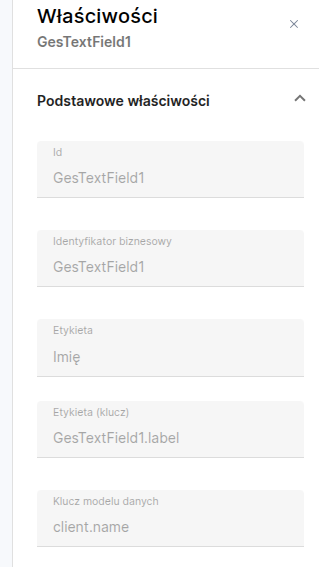
Once the data model is already defined and attached, we can in **the request form** bind specific fields (UI components) to model fields. In the form editor, each component that stores some value (e.g. text field, selection field, date, etc.) has the property **"Data model key"**.
If the form is attached to an application, the key can be conveniently selected from the list. If the needed key is not on the list, it can be entered manually.
Figure 1. Selecting a data model key from the list (with manual entry option)
If the form is not attached to any application, the key selection area shows the message **The form is not attached to an application** and the action **Attach form to application**. After clicking it, select an application from the list and click **Attach**. The editor will immediately show the data model keys of that application, without saving the form.
After specifying the key, the data from the component is bound to the appropriate place in the model. From that moment, the component becomes **two-way bound** (two-way binding) to the data model – during form initialization, the value from the model (if it exists) will be loaded into the field, and when the user fills in or changes this value, it will be written back to the data model when the request is saved. This means that **after saving the form, all bound fields update their corresponding values in the data model**, so the model always reflects the current state of the request data.
Figure 1. Example of two-way binding using a data model key
{% hint style="info" %}
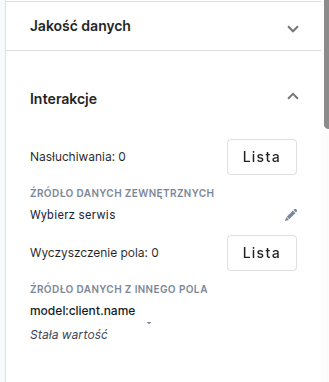
**Info:** You can also use **one-way binding** of a field to a model in a situation where you only want to display the value from the model on the form, but not update it based on user input. Such a one-time read is implemented, for example, by inserting a reference to the model variable in texts (labels) or by using the component property **`valueSourceId`**, which will read the value from the model in read-only mode only. By default, however, for editable fields we use two-way binding so that the entered data is saved.
{% endhint %}
Figure 2. Example of one-way binding using valueSourceId
Keep in mind that **not every form component can be bound to the model**. The data model only makes sense for fields that store values. Therefore, we will not bind, for example, elements such as:
* links,
* CAPTCHA fields,
* single radio buttons (outside radio button groups),
* popup windows,
* QR codes (if they occur as an image/decorative element).
All other fields (text, numeric, list selections, checkboxes, dates, sections, etc.) can and **should** be bound to the data model if their value is to be preserved or used outside the form itself. This binding ensures consistency – every piece of data entered by the user has its place in the model, from where it can be further processed (e.g. passed to the process).
Values from the data model can be used in the Content (TextContent) artifact, e.g.
{% code expandable="true" %}
```java
Sample content ${model:client.name}
```
{% endcode %}
### Handling array fields (lists)
The data model allows defining fields that are collections (arrays) of objects or simple values. If a field in the model is to have multiple repetitions (e.g. a list of addresses, a list of products, etc.), set its `multiplicityMax` > 1 (e.g. `null` for no upper limit) and prepare the appropriate data source returning a collection. In the form, such a field can be represented e.g. by **Repeatable Section** (Repeatable Section) with appropriate fields inside. It is important to **correctly refer to array elements** in the model keys:
* `collection[].field` – reference to *all* occurrences of the field in the collection (returns the entire list of values or e.g. concatenation, depending on context),
* `collection[0].field` – reference to the field in the **first** element of the collection (index 0 means first element, 1 - second, etc.),
* **Note:** You cannot omit the index! Syntax `collection.field` (without `[]` or index) is incorrect and will cause an error preventing the form from running. Always use array notation when referencing fields of collection elements.
* For repeatable sections in the form, where the user can dynamically add/remove elements, Eximee uses the variable `_rowIdx` assigned to the given section to pass the current row index. The model key then contains an identifier in the form `SectionName_rowIdx`. For example, if the repeatable section is bound to the collection `products[]` and has the field `name`, then the field key in the section may look like: `products[SectionName_rowIdx].name`. This mechanism ensures that each dynamically added field is associated with a unique index in the model.
Figure 3. Binding an array field to a repeatable section
Figure 4. Binding a Combobox located in a repeatable section to the data model
### Using the model in the Data Quality tab
You can use keys from the data model in the **Data Quality** tab to define visibility, requiredness, or activity conditions.
However, remember that if a field listens for changes in another field, each such reference will trigger a new query to the data model, which may negatively affect performance. In such cases, it is recommended to retrieve the value from the data model into a variable and use that variable in conditions, which helps avoid unnecessary references to the model.
Figure 5. Visibility condition using the data model
### dataModelTransformer
Thanks to **dataModelTransformer**, located in xml ("Source" tab) you can influence the data that will fall into the data model after saving the request.
To use this functionality, add a script in xml (in ecMetadata inside iftTemplateMetadata) that can modify the saved model.
Example of mapping session variables to the data model:
{% code expandable="true" %}
```java
function transform(input) {
input.put('bazaOfert.KredytNr', api.form.v1.value("agreementId"));
input.put('bazaOfert.CIF', api.form.v1.value("cif"));
if(api.form.v1.value("GesCheckbox5") == "false"){
input.put('daneKlientaCis.NumerTelefonu', api.form.v1.value("phoneNumber"));
input.put('daneKlientaCis.AdresEmail', api.form.v1.value("email"));
}
return input;
}
```
{% endcode %}
Example of mapping values from invisible fields to the data model:
{% code expandable="true" %}
```java
function transform(input) {
for (let node of api.form.v1.invisibleFormNodes()) {
if(node.model()) {
input.put(node.model(), '');
}
}
return input;
}
```
{% endcode %}
---
# Agent Instructions
This documentation is published with GitBook. GitBook is the documentation platform designed so that both humans and AI agents can read, navigate, and reason over technical content effectively. Learn more at gitbook.com.
## Querying This Documentation
If you need additional information that is not directly available in this page, you can query the documentation by asking a question.
Perform an HTTP GET request on the following URL with the `ask` and `goal` query parameters:
```
GET https://docs.eximee.com/documentation/documentation-en/budowanie-aplikacji/interfejs-uzytkownika/formularze/praca-z-komponentami-bazowymi/model-danych-na-interfejsie.md?ask=&goal=
```
`ask` is the immediate question: it should be specific, self-contained, and written in natural language.
`goal` is what the user is ultimately trying to achieve, the reason they need the answer. Sharing it helps GitBook give you a better, more relevant answer. A goal is most helpful when it describes the outcome the user wants rather than restating the question. For example, with `ask=how do I create an API token`, a goal like `automate deployments from our CI pipeline` lets GitBook tailor the answer to that use case.
The response will contain a direct answer to the question and relevant excerpts and sources from the documentation.
Use this mechanism when the answer is not explicitly present in the current page, you need clarification or additional context, or you want to retrieve related documentation sections.