Composite components

Introduction

A composite component allows you to encapsulate a piece of the application screen into a coherent, reusable element. In the component, both the appearance of the screen area and its behavior are defined.

Teams using composite components to build user interfaces save time and make it easier to maintain frontend consistency.

Role and use cases

The main role of composite components is the multiple reuse of repetitive form areas on different pages. Once created, a composite component can be embedded:

  • on different pages of the form – allowing many pages to use a common, consistent part

  • multiple times on the same page – e.g., if a single form needs two independent address sections (for permanent residence and correspondence addresses).

This approach significantly accelerates application development and simplifies maintenance – a change in the composite component definition automatically affects all places where it is used.

This increases the consistency of the application (the same components look and behave identically across different forms) and reduces the risk of errors resulting from duplicating configuration. For example, if a form requires a repeating section with the same fields (like the aforementioned address section), it is worth extracting it as a composite component and using it multiple times instead of creating those fields from scratch each time.

Composite components are often used in business applications as standard form sections (e.g., address data, contact information, customer information sections, etc.), which ensures a uniform user experience and facilitates the development of subsequent forms.

Illustration 1. “Composite components” in the “Library” module

Creating a component

To create a new composite component or edit an existing one, you should:

  1. In the Eximee Designer go to the module Library module and select the Composite components,

    1. this view displays a list of all composite components available in the repository along with management options,

  2. From the list you can:

    1. create a new component (button Add composite component),

    2. copy or edit an existing artifact using the drop-down menu (three dots)

    3. review the component’s version history using the drop-down menu (three dots)

  3. Select the option to add a new composite component

    1. an artifact creation window appears, where you provide the component name and location (folder) in the project tree, analogous to creating a new form.

Illustration 2. “Window with a list of composite components in the library”

After creating the composite component artifact, the composite component editoropens, very similar to the form editor. In the central part of the view, we design the layout and add the required fields and controls – you can drag base components (e.g., text fields, lists, buttons, etc.) onto the workspace, or even nest other available composite components. In this way, we define the internal structure of the new composite component. On the right side there is a properties panel where we configure the attributes of the selected fields (as in a form).

After configuring the content of the composite component, we save it, assigning an appropriate version (more on versioning below). Saving creates a new version of the artifact, which can be used in forms.

Illustration 3. “Composite component editor window – designing content”

Parameters input

Composite components can accept input parameters, which makes it possible to pass values inside them from the outside – from a form or even from another composite component.

To define an input parameter, in the composite component definition editor select the option in the left panel Input parametersand then click Add input parameter. Each input parameter refers to some field or session variable from the embedding context of the component (i.e., it will expect assigning a specific field/variable when the component is used). When defining a parameter:

  • we indicate the value source (form field or variable),

  • optionally we assign an alias (a friendly name displayed during mapping)

  • optionally we provide a default value – used if no value is assigned during embedding.

It is possible to map values from fields of the parent form, fields from other composite components located on the same form, as well as session variables available in the form context.

Thanks to the input parameters mechanism, a composite component can be more universal – e.g., instead of referring internally to a specific global variable, it can accept a value as a parameter, which allows it to be used in different places with different data.

Illustration 4. “Input parameters configuration panel in the composite component editor”

Embedding a component

A created composite component can be embedded in any form or even inside another composite component (nesting) – the platform allows any levels of nesting.

To use a composite component in a form, go to the edit mode of that form, and then from the components palette on the left select the Compositetab. A list of all composite components available in the repository will be displayed (with the option to search by name). From this list, select the appropriate component and add it to the form using drag-and-drop to the desired place in the form structure.

After dropping, the composite component will be embedded in the form as a single logical whole – in the form structure tree it will be visible as a single node containing the previously defined fields.

If the embedded composite component has defined input parameters, after adding it to the form you must configure the mapping of those parametersby assigning them appropriate fields or values in the context of the form or parent component.

In the form editor, the section for this is found Input parameters in the properties of the embedded component – simply select the composite component on the form and click the pencil icon next to the Input parametersfield to open the mapping window.

Illustration 5. “Input parameter mapping window when embedding a composite component in a form”

A composite component placed on the screen becomes its integral part. All fields it contains inherit the behavior of standard fields – e.g., required fields must be filled in, validators attached to fields inside the composite component work the same as for fields added directly to the form, etc.

If necessary, at the form level you can also define additional form validators that also cover fields inside composite components (e.g., a script checking data consistency between sections).

Similarly, navigation or conditional visibility mechanisms also work on nested components – a composite component can be hidden or shown depending on a condition, analogous to a single field.

Versioning and change propagation

Versioning is described in detail here.

Interactions with other artifacts

A composite component does not operate in a vacuum – it interacts with various elements of the platform

Forms

The basic “relationship” is embedding into a form, as discussed above. From the form’s perspective, a composite component is simply a form element – during application runtime, the end user does not see a difference between fields originating from a composite component and other fields. In the Translations tab of the form, all texts contained in embedded composite components are available for editing – this means that translations of labels and hints from the composite component can be overridden or adjusted at the specific form level if necessary. A composite component is also treated as a part of the application.

Validators

Fields within a composite component can use all validation mechanisms available to regular fields. If we assign a script validatorto any of the fields inside the composite component, it will be executed just like for a standard field on the form. Also visibility conditions or requiredness conditions can be defined for fields inside a composite component – they will be respected after embedding the component in the form. Moreover, validators defined at the entire form level (e.g., verifying dependencies between different fields) can refer to fields located in composite components. Such a field can be identified by its business identifier (mid) – composite components and their fields have business identifiers just like regular form fields, which makes it easier to reference them in scripts and configurations.

Formatted content

Composite components can also use content artifacts (TextContent), analogous to regular forms. If a section requires embedding a larger block of static text (e.g., terms, clauses, descriptions), you can add a control of type Formatted content in the composite component and link to a Content artifact containing the appropriate content (managed centrally). Thanks to this, a composite component can contain not only data fields, but also informational elements or user instructions, making it a complete, reusable fragment of the user interface.

Services and variables

If session variables are used inside a composite component (e.g., to store transient values or service results), remember to prefix the names of these variables with the symbol in conditional expressions @. This allows the platform to distinguish a component’s session variable from the parent form’s session variable.

Furthermore, session variables cannot be used directly in components of type Repeatable section inside a composite component – in such situations it is recommended to use technical fields as value carriers.

If a composite component needs to use an external service (e.g., to populate its fields based on database data), it can call services just like a form. A service can be attached as a PageService in the component logic and, for example, invoked in response to an event (e.g., a field change). However, remember that services operate in the context of the entire application case, so invoking a service from the component level affects the parent form.

Good practices

Identifying reuse opportunities

Already at the requirements analysis stage, it is worth identifying form sections that may appear multiple times or in many different application forms. Such sections (e.g., address data, customer personal information, contact information section, consent sections, etc.) should be designed as separate composite components instead of duplicating the same fields in many places. This makes development easier (the section is created once) and maintenance simpler (modifying the section in one place updates it everywhere it is used).

Naming and organization

Use consistent artifact naming. A composite component should have a name that clearly indicates its content or purpose. It is common to use a convention of prefixing component names with an application- or business-module-related prefix, e.g., crmCustomerAddress, insVehicleData – this makes it easier to identify which area a given component belongs to in the repository. Additionally, keep the directory structure in the Library tidy – it is worth grouping composite components into thematic or project folders.

Documenting the component

Each composite component can be provided with internal documentation. In the tab of the Properties composite component editor, there is a “Documentation” section where you can describe the component’s operation and purpose (it supports HTML formatting). It is recommended to fill in the documentation for the component – especially if it will be used by many developers or in many places – so that platform users know how to apply it correctly and what its possible dependencies are. Good documentation facilitates reuse of the component and speeds up onboarding of new team members.

Illustration 6. “Composite component “Properties” tab – documentation preview”

Versioning and backward compatibility

When planning changes to a composite component, consider their impact on existing forms. Avoid introducing breaking changes without bumping the major version (MAJOR). If a change to the structure or behavior of the component is necessary that could disrupt the operation of forms using it, it is better to create a new version branch. After modifications, test the composite component in all critical scenarios – especially when the component is used in many places.

Avoiding excessive complexity

Although composite components can contain any logic, try to ensure they perform a relatively uniform, clearly defined function. Avoid creating a single huge composite component that handles many unrelated tasks – it is better to split it into smaller, more specialized sections. Excessive nesting of composite components (a component within a component within a component, etc.) can also make debugging and understanding the form more difficult – use this capability judiciously, guided by the readability of the form structure.

Be careful when copying components

The platform allows duplication of a composite component (the Duplicate option on the composite components list) – this is useful when we want to create a similar component based on an existing one. However, make sure how nested components are treated during copying. If the copied composite component contained other composite components, the copy will not create their duplicates – references to the original artifacts will be preserved. You need to decide whether in the new component you still want to use those original, shared subcomponents, or whether you should copy them as well (e.g., when changes in them should not affect our new component). This is important from a maintenance perspective – unintentionally editing a nested component may affect other places where it is used.

Using ready-made components

Check whether the composite component you need does not already exist in the library – especially in larger organizations, a catalog of shared components may be developed. Using already prepared and tested components (e.g., user authorization components, downloadable documents component, GDPR consent sections, etc.) is faster and safer than creating your own from scratch. Build new composite components when a suitable functionality is indeed missing in the existing resources.

UX consistency

Remember that a composite component is part of the user interface – design it in accordance with the UX/UI standards in your organization. Ensure that the layout of fields, their labels, hints, as well as validations and error messages within the component are consistent with the rest of the form. Thanks to this, the user will not feel that a given section was “glued on” from elsewhere. Use the translations mechanism for static texts in the component, fill in their keys and values – this will facilitate managing literals from the application level.

Example

The illustrations below show an example of a composite component named demoAddress and how to use it. First, a composite component containing address fields (street, city/town, postal code) was designed – it serves as a template for the address section:

Illustration 7. Designed composite component “demoAddress” (address section)

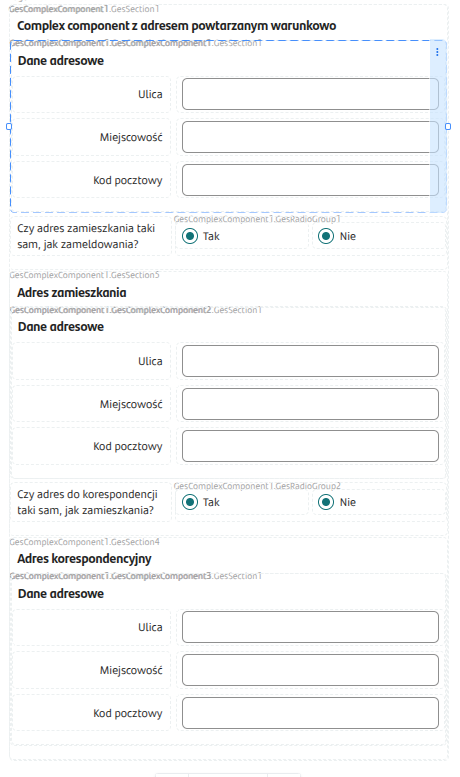
Then the same component demoAddress was embedded three times in a sample form (e.g., for residence address, correspondence address, and workplace address) – by reusing a single artifact we obtain three sections in the form without having to create three sets of fields separately:

Illustration 8. Multiple use of the “demoAddress” composite component in the form structure (embedded three times)
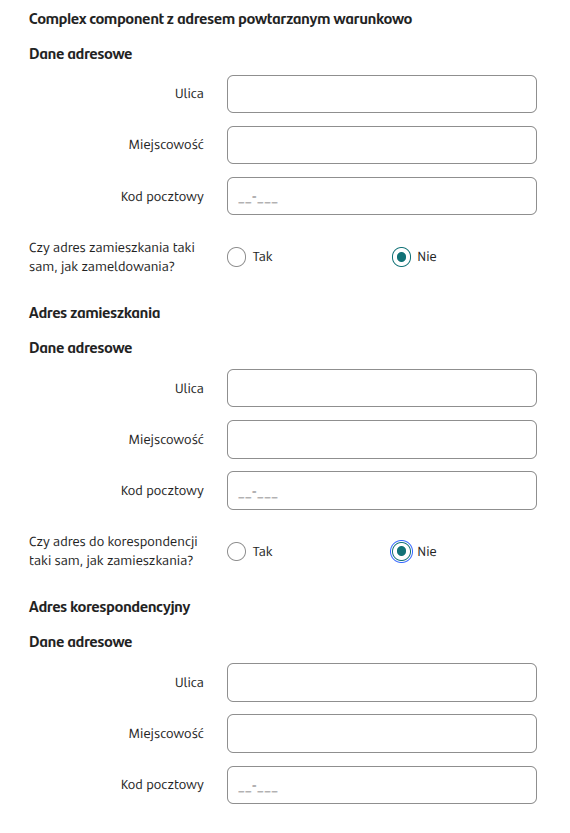
As a result, the form interface displays three uniform address sections using the same composite component:

Illustration 9. Appearance of the form with the “demoAddress” composite component embedded multiple times (three address sections)

The above example illustrates how composite components simplify creating repetitive parts of the application – modifying the component demoAddress (e.g., adding a “Country” field) will automatically introduce this field in all three address sections on the form. This makes managing complex forms easier, and shared parts of the application remain consistent across all places of use.

Using the above tips and best practices, Eximee composite components make it possible to efficiently build modular, easy-to-maintain business applications, in which once-defined sections can be used in many processes and forms. Well-designed composite components pay off by reducing duplicated effort, unifying the interface, and speeding up future changes.

Last updated

Was this helpful?