Editing a selected version

Editing an application item – using a form as an example

Depending on the part of the system you are using, the way to go to edit an application item may vary slightly.

Editing the latest version of the form

If you are in the Librarytab, Formsediting the selected form will be possible after clicking its row on the list and then using the Edit button (pencil icon in the top right bar).

Alternatively, the form can also be opened from the Forms tab in the Applicationsmodule, provided the given form was previously added to that application. In that case clicking its row will take the user directly to the form editor.

Editing a selected version of the form

To edit a specific version of the form (e.g. an older or test version), open the Version history:

  • view from the form editor – by clicking the Versions,

  • button from the Library or Applications module – via the context menu in the Formstab, selecting the Version history.

illustration 1. Selecting the "Version history" option in the "Forms" tab of the "Applications" module
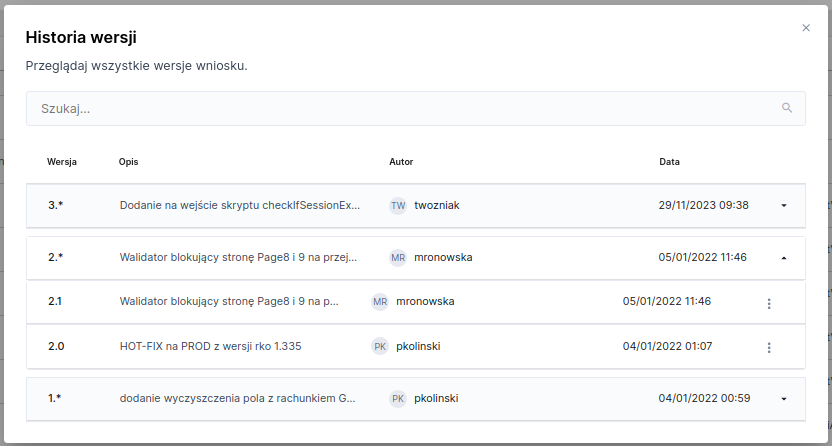
Version history displays a dropdown list of major versions (1, 2, 3, ...) together with their assigned minor versions (1.1, 1.2, ...). Clicking a row of a given minor version opens it in preview or edit mode – depending on available permissions and the version state.

Illustration 2. "Version history" window with expanded major version 2.* of the application

Last updated

Was this helpful?