Saving with publication of the element

Saving the application item currently being created/edited

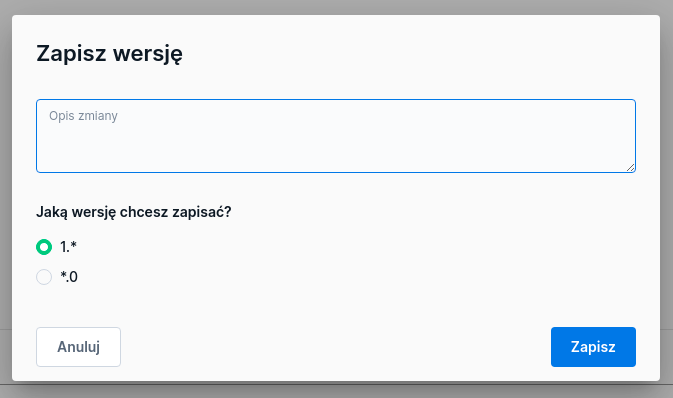
After making changes and clicking the Save, we get a popup with the option to save a new version of the business application item.

In the item name and in the description you can use the following characters:

  • uppercase and lowercase letters (without Polish diacritics),

  • numbers,

  • hyphens ( - ),

  • underscores ( _ ).

There is the option to add a comment and determine whether the current version of the artifact is a new Major version (*.1), or a subversion for the current branch (1.*). More about versioning in the chapter Versioning.

Figure 1. Standard artifact save popup
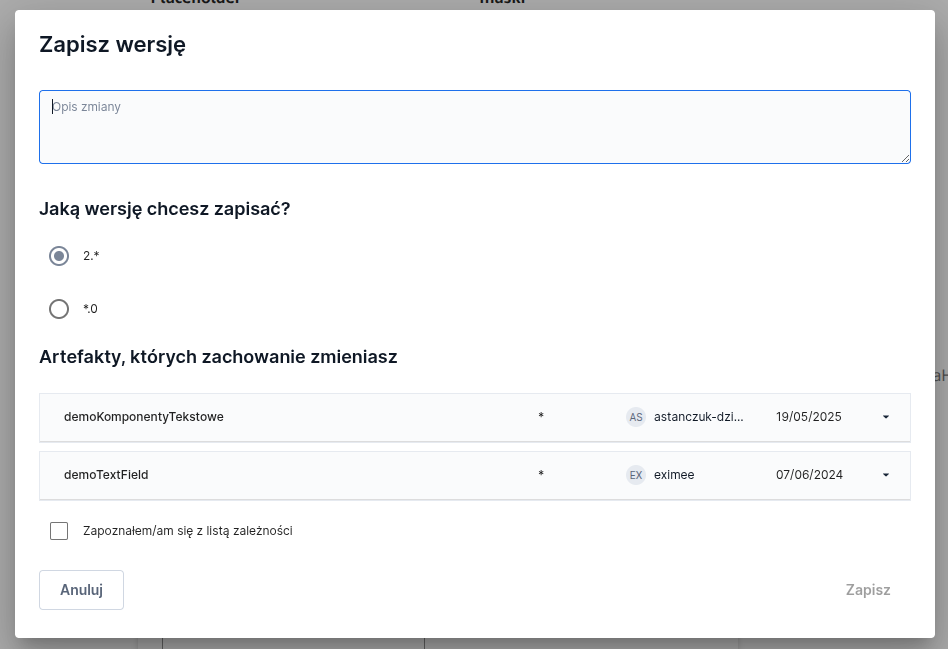
Dependencies that will be changed

When saving the application item a list of other items affected by the version being saved is displayed. You should review it and check the checkbox I have reviewed the list of dependencies.

Figure 2. Artifact save popup with list of dependencies

Publishing a selected version of the application item

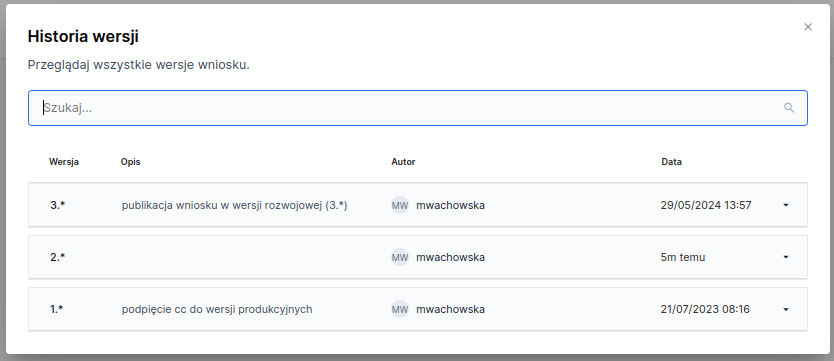
Publishing a different version of an application item than the highest available in the repository is possible in several ways. For example, when in read-only mode in the form editor, you can select the Versionsbutton, and then after the Version history window appears select the Publish:

Figure 3. Window with application version history and context menu containing the publish option

The version history window can also be displayed while in the form editor, where for each template the context menu contains the option Version history.

Currently active version of the application item

The only information about the currently active version of the artifact is checking the date of the last save.

Figure 4. Window with application version history (version 2.* is the version with the latest changes)

Last updated

Was this helpful?