Editing the data model
Data model editor
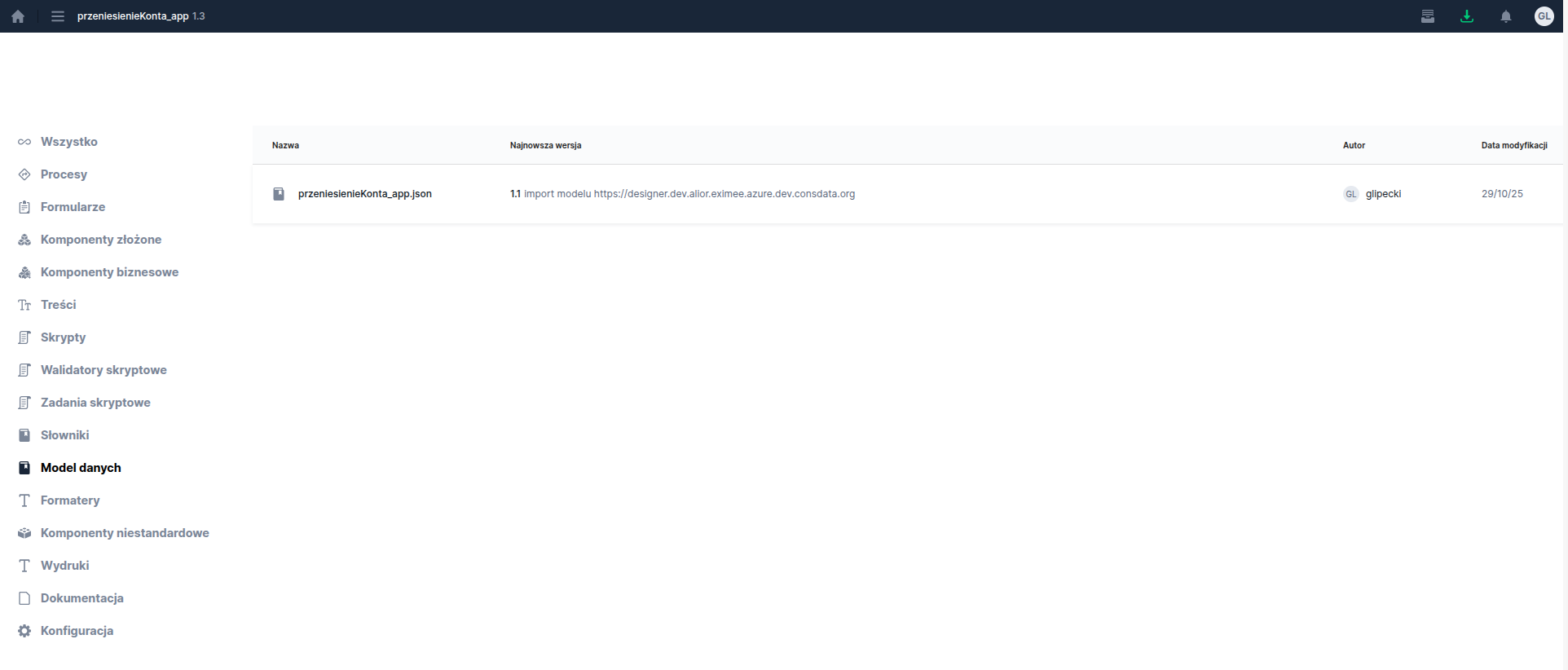
To go to the data model editor, select "Data model" on the main screen of the Eximee Designer application

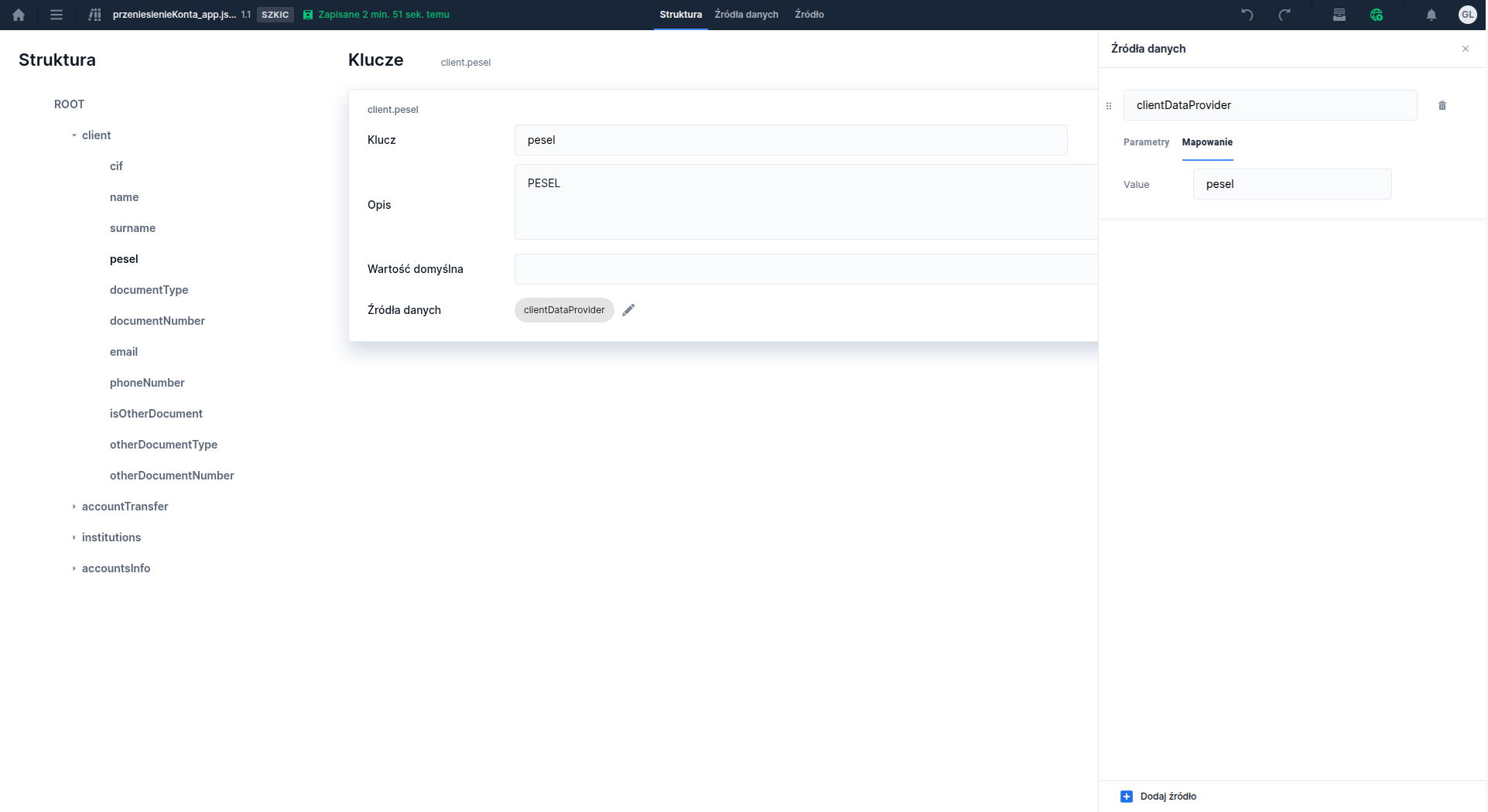
The data model editor is divided into three tabs:
Structure, where we manage the model structure and fill in node parameters,
Data Sources, where we define and parameterize data sources,
Source, where we edit the JSON that is the source representation of the model - functionality for advanced users.
Structure
The data model structure is presented as a tree in the left panel of the editor. Tree branches can be collapsed and expanded.

Selecting a tree node automatically filters the nodes in the list on the right side.

At the top of the node list the key that is the current view filter is displayed: "client.surname" in this case.
Parameterizing model elements
Node

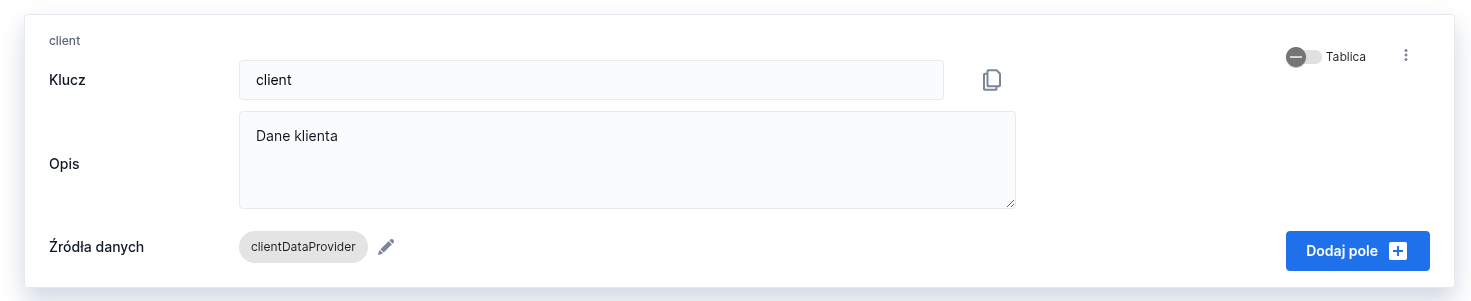
In the model node editing section you can edit the key and the documentation ("description") of the object. You can also mark the object as an array.
The context menu contains an option to delete the node along with its descendants.
To add a field to a node you must click the "Add field".
Field
The field section in the data model additionally allows specifying a default value for the field.

Data source
Clicking the data source chip or the pencil icon next to it opens a drawer with the list of data sources and the ability to edit usage (source order, source parameters, value mapping).

By default, for every leaf of the data model tree (that is, a field that has no further sub-fields) the platform automatically adds a special data source of type ValueMap. This is a built-in source that stores the field's value in the application's memory structure (in the so-called request value map) – it can be treated as the equivalent of a session variable that holds data in the context of the entire application (form). The default ValueMap mapping uses the full path of the field's keys as the key in this internal map (e.g., for the field country located inside the object personalData the key in the value map will be personalData.country). Thanks to this, after binding form fields to the model, it is not required to write additional code to save the entered data – the value entered by the user will be automatically placed under the appropriate key in the model's memory.
Data source - defensive logic and empty values
Data model sources cannot assume a deterministic order of invocations or that all input data is already available. The platform may invoke a source earlier (e.g., when determining the multiplicity of dynamic sections of the form or model), even if the data field is not yet directly used in the form or process.
Therefore data sources must be designed defensively: in situations of missing data, incomplete data or "not yet ready" data they should return safe, empty values (null, empty list, empty object) and not throw exceptions. An empty value means: at this stage I cannot determine the value and it allows subsequent sources in the cascade to operate, in particular default sources (e.g., ValueMap or default values on the field definition).
Exceptions should be reserved only for actual technical errors (e.g., communication errors or incorrect configuration), which should interrupt the system's operation (abort the form, roll back the process transaction, etc.), and not for transitional process states.
Last updated
Was this helpful?