Scripts editor
Script view
In the main script view the selected version of the script is displayed. The side panel contains buttons that allow you to slide out the script parameters panel, unit tests and logs.
The button to run the script is located on the Parameters.

Script editing
Work on the script is possible thanks to the Monaco editor (the editor supports the JavaScript language).
Initially it runs in read-only. To start working, click the Edit script button located at the end of the navigation bar.

The instruction "how to write a service script" is located in Scripts (scriptService) and ScriptCode best practices.
Variables in ScriptCode within a block scope
The Eximee platform requires that variables in ScriptCode be declared within block scope.
Lack of variable declaration will cause a script error.
Parameters
Modification of parameters also takes place in Monaco (the editor supports JSON notation).
On first opening a non-empty script, parameters will be automatically deduced (if possible) from the script content itself.
Under the editor there is a button that allows running the script with the parameters provided in the Test data.

Parameters filled in the Test data section are not part of the script itself and will not be saved in that script version!
Editing inputs/outputs
Here we can add or remove service script inputs/outputs.
Adding or removing an input will also update the runtime parameters, so after removing a parameter we will lose any mapping it had at the connection point.

Script result
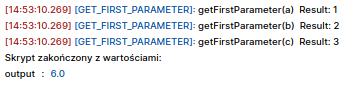
An additional window appears at the bottom of the screen. There we find all information about the executed script:
Script runtime given in ms.
Execution logs of the script in the form of:
[OPERATION_TIME] [OPERATION_TYPE]: Operation textFor example:
[14:31:22,976] [GET_DATA]: Called getData("GesCustomComponent1","data") and resulted with data z ccThe result of calling the script (in the logs panel), i.e. all values defined as outputs during the creation of the service script in the form KEY : VALUE.

Illustration 5. Script result tab
Monaco editor
The editor used in the project is a full-fledged editor, which means it offers a set of shortcuts that assist writing. List of the most frequently used keyboard shortcuts:
Ctrl + Shift + I - code formatting. After writing any fragment it is always worth formatting it; this increases readability and makes work easier.
Ctrl + Shift + O - jump to variable/function. This is search on steroids. When scripts grow to sizes that don't fit on one page, it's worth using such shortcuts to move around the code faster.
Ctrl + Shift + K - delete the entire line.
Ctrl + F2 - find and replace a specific symbol (function name, variable).
Ctrl + G - go to line.
Ctrl + Shift + Alt + Up/Down Arrow - clone the cursor up/down.
F1 - list of all available shortcuts and editor options.
Tests
The editor has the ability to define test scenarios.
Errors during test run
If the script contains errors, during a test run such an error will be logged in the console under the editor. The message will contain the reason and the location in the code where the error occurred.

Last updated
Was this helpful?