> For the complete documentation index, see [llms.txt](https://docs.eximee.com/llms.txt). Markdown versions of documentation pages are available by appending `.md` to page URLs; this page is available as [Markdown](https://docs.eximee.com/documentation/documentation-en/budowanie-aplikacji/interfejs-uzytkownika/formularze/dynamicznosc-formularza/nasluchiwanie-i-czyszczenie.md).
# Listening and cleanup
* **Listening and clearing** These are mechanisms that enable defining the dynamic behavior of form components and their associated variables. Thanks to them, changes in one field can automatically affect other fields, components, or values in the form.
* **Listening attribute (ListeningOn)** – allows you to specify which other components or variables a given component "listens" to. This means that a change in the value of the indicated component or variable will trigger a response in the listening component – e.g. recalculating its value or refreshing its visibility.
* **Field clearing attribute (ClearOn)** – defines which changes in other components or variables will automatically clear (remove) the value of a given component. In other words, if the indicated related field or variable changes its value, the component with clearing set will remove its own current value (clear the field).
* Both of the above attributes are available in the **Interactions** properties panel of the selected component. Configuration is done using a special window – click the **List** button next to the *Listening* or *Clearing the field*, which will open a popup for editing these settings.
Figure 1. The "Interactions" section
* In the **Elements triggering change** (opened with the **List**) a list of components that the given control listens to is displayed. The list can be narrowed using the filter field (**Filter...**) at the top of the window. Next to each added item there is a trash icon – it appears on hover – allowing you to remove that item from the list of listened-to items.
Figure 2. Window for selecting elements to listen to
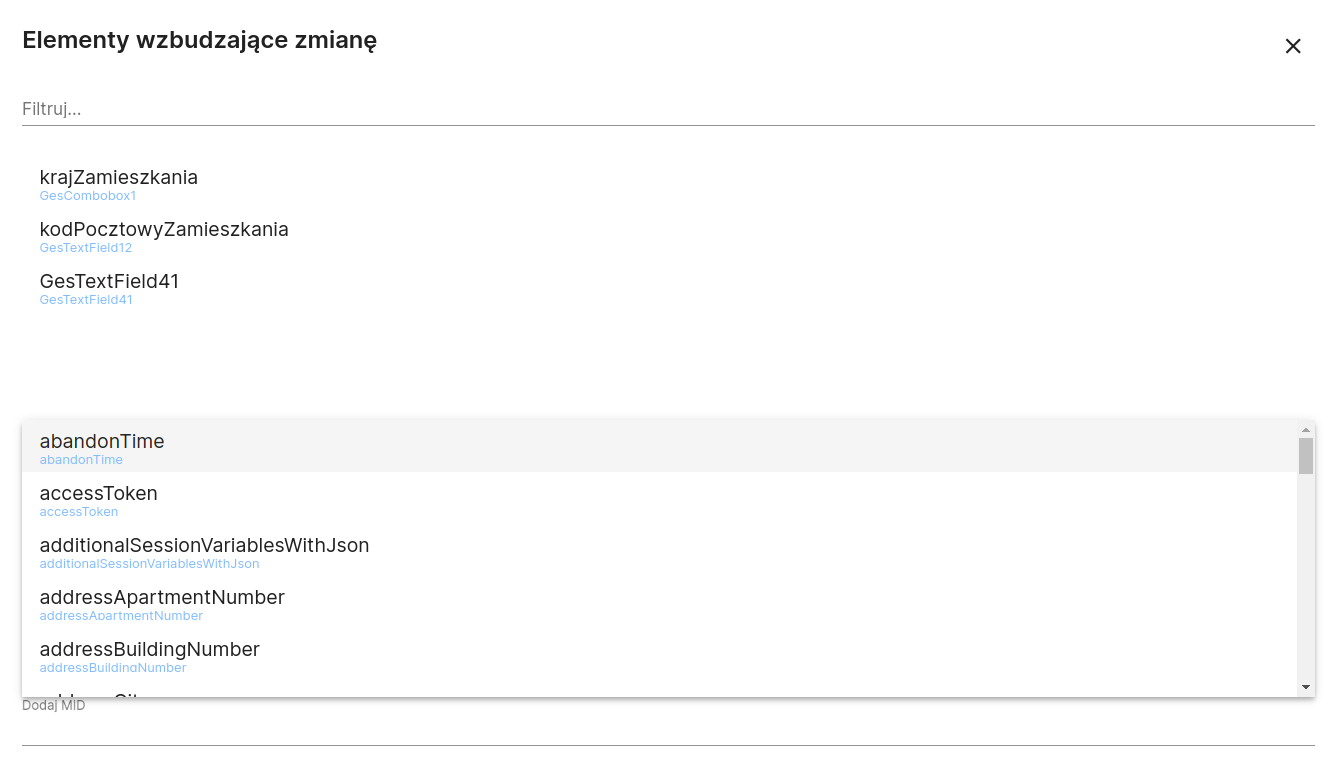
* To add a new element to listen to, use the **Add MID** field at the bottom of the window. This field suggests all available identifiers (MID/ID) of components and variables that can be listened to. Select the desired component from the suggestion list (by clicking it or by confirming with Enter). The selected item will be added to the list, and the Listening attribute description in the properties panel will show information about the number of listened-to items (e.g. *Listening: 1*).
Figure 3. Indicating the element to add
* *Note:* If validators, services, or conditions (visibility, enabled/active state, requiredness) used in the component logic refer to values of other fields or variables, you should **set ListeningOn correctly (and, if necessary, ClearOn)** for those dependencies. Otherwise, changes in related fields will not be automatically taken into account by the given component.
### Use cases
* **Automatic field recalculation** – A calculated field (e.g. the sum of two values) listens for changes in source fields. If the user changes the value in one of the component fields, the sum field will automatically recalculate its value.
* **Dynamic section visibility** – A form section shown conditionally (e.g. additional details displayed after checking the checkbox *“Show more”*) should listen to that checkbox. Thanks to this, changing the checkbox state will immediately cause the condition to be re-evaluated and the section to be hidden or shown according to its definition.
* **Resetting the dependent field value** – A field that should be cleared after another selection changes uses the *Clearing the field*. For example, the field *“Car model”* can listen to the field *“Car brand”* and have clearing set relative to it. Changing the brand will automatically remove the previously selected model value so that the user can choose a new model matching the changed brand.
* **Refreshing the document list after changing the page** – The *Document list* (DocumentList) component can listen to the variable `currentPageMid` (identifier of the current form page). This causes the component to reload/refresh its data when moving to another page of the application. This prevents a situation where an outdated set of documents (e.g. printouts) is displayed after changing the page.
### FAQ
* **Q:** How do the attributes *Listening* and *Clearing the field*?\
**A:** *Listening* make the component react (recalculate or refresh) in response to a change in the value of a specified other field or variable. Whereas *Clearing the field* cause the component's current value to be automatically cleared when the specified related field or variable changes.
* **Q:** Do I need to set listening if my component uses a condition or validator referring to another field?\
**A:** Yes. If the component logic (e.g. visibility or requiredness condition, validator script, etc.) uses the value of another field or variable, then the component **must listen** to that element. Otherwise, changes to the value of that field will not be taken into account in real time – the condition or validation will not react to the changed data.
* **Q:** I set the attribute *Clearing the field*, but the field does not clear its value when the related component changes – why?\
**A:** Most likely, the listening attribute is missing. For field clearing to work correctly, the target component must **also listen** to the indicated change-triggering element. In other words, in the component configuration you need to add *Listening* **together with** *Field clearing* referring it to the same component whose change should clear the value.
* **Q:** How do I add or remove an item from the listened-to list for a given component?\
**A:** You need to open the listening configuration window – in the properties panel click **List** next to the attribute *Listening*. In the window **Elements triggering change** the new item is added via the **Add MID** (by typing or selecting the appropriate component/variable from the list and confirming with Enter). To remove an item from the listening list, simply hover over its name in this window and click the trash icon next to it.
* **Q:** Which elements can be listened to?\
**A:** A form component can listen to changes in **other components** (form fields) and **session variables** related to the form. During configuration in the listening window, a full list of the IDs/MIDs of all fields and variables that can be selected as listening sources is available.
---
# Agent Instructions
This documentation is published with GitBook. GitBook is the documentation platform designed so that both humans and AI agents can read, navigate, and reason over technical content effectively. Learn more at gitbook.com.
## Querying This Documentation
If you need additional information that is not directly available in this page, you can query the documentation by asking a question.
Perform an HTTP GET request on the following URL with the `ask` and `goal` query parameters:
```
GET https://docs.eximee.com/documentation/documentation-en/budowanie-aplikacji/interfejs-uzytkownika/formularze/dynamicznosc-formularza/nasluchiwanie-i-czyszczenie.md?ask=&goal=
```
`ask` is the immediate question: it should be specific, self-contained, and written in natural language.
`goal` is what the user is ultimately trying to achieve, the reason they need the answer. Sharing it helps GitBook give you a better, more relevant answer. A goal is most helpful when it describes the outcome the user wants rather than restating the question. For example, with `ask=how do I create an API token`, a goal like `automate deployments from our CI pipeline` lets GitBook tailor the answer to that use case.
The response will contain a direct answer to the question and relevant excerpts and sources from the documentation.
Use this mechanism when the answer is not explicitly present in the current page, you need clarification or additional context, or you want to retrieve related documentation sections.