> For the complete documentation index, see [llms.txt](https://docs.eximee.com/llms.txt). Markdown versions of documentation pages are available by appending `.md` to page URLs; this page is available as [Markdown](https://docs.eximee.com/documentation/documentation-en/zarzadzanie-aplikacja-biznesowa/testowanie-i-debugowanie-aplikacji/symulator.md).
# Simulator
{% hint style="info" %}
Availability of functionality depends on the license and may not be available in all deployments.
{% endhint %}
Thanks to the application simulator, we can open a form with parameters defined by us:
* selected environment,
* user identifier,
* specific input parameters,
* selected channel: App (RWD), Native, IB inline, IB popup, or in a new browser tab.
In the App and Native channels, it is also possible to specify a specific device for simulation. Additionally, for Native, API calls for the given application are displayed.
## Launching the application simulator
To launch the application simulator, select the option from the Eximee Designer navigation bar **Simulator**.
### Setting input parameters
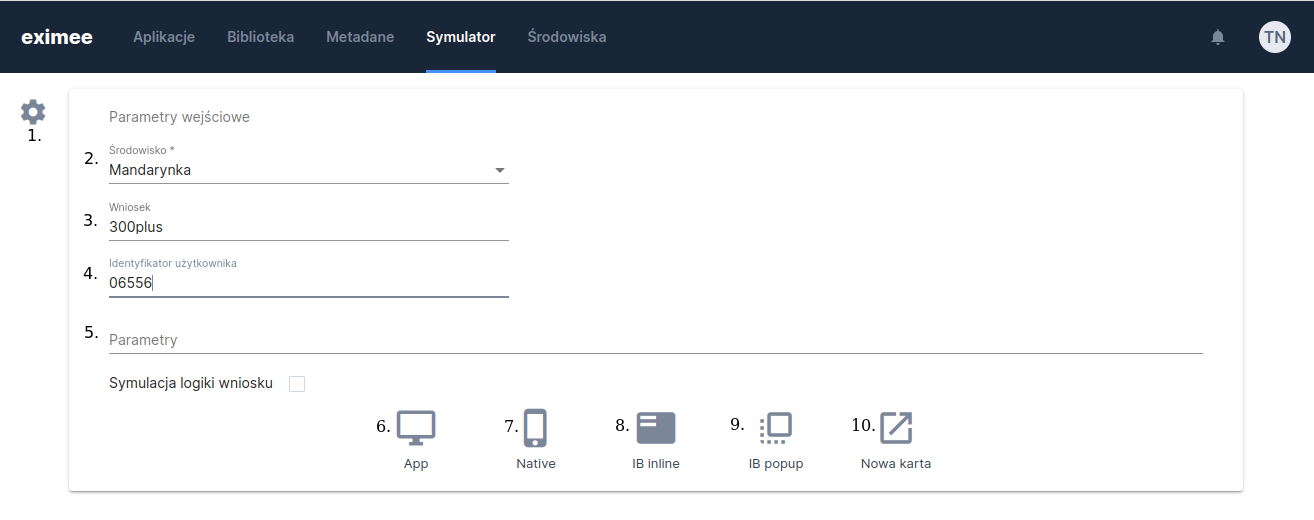
The form at the top of the module allows you to launch an application with the selected parameters.
1. Button showing/hiding the input parameters form.
2. **Environment** - the environment on which the tested application is located.
3. **Request** - the name of the tested application; if the value is empty, the simulator will display a list of available applications (for App, Native, New Tab channels) or a default, predefined application (for IB inline and IB popup channels).
4. **User identifier** - allows entering the user identifier for which the session key will be fetched and added to the URL when the simulator is displayed. If the field is empty, the key will not be fetched.
5. **Parameters** paths (query parameters) - a field allowing you to define parameters that will be appended to the path (e.g. source=ib).
6. The button **App** - launches the simulator in the desktop channel (app).
7. The button **Native** - launches the simulator in the native application channel.
8. The button **IB inline** - launches the simulator in the IB inline channel.
9. The button **IB popup** - launches the simulator in the IB popup channel.
10. The button **New Tab** - opens the application in the selected environment in a new browser tab.
11. **Channel**\* - the layout in which the application is to be launched (an option dependent on configuration).
Figure 1. Simulator properties
Figure 2. Simulator properties with channel selection
### Selecting the simulated device
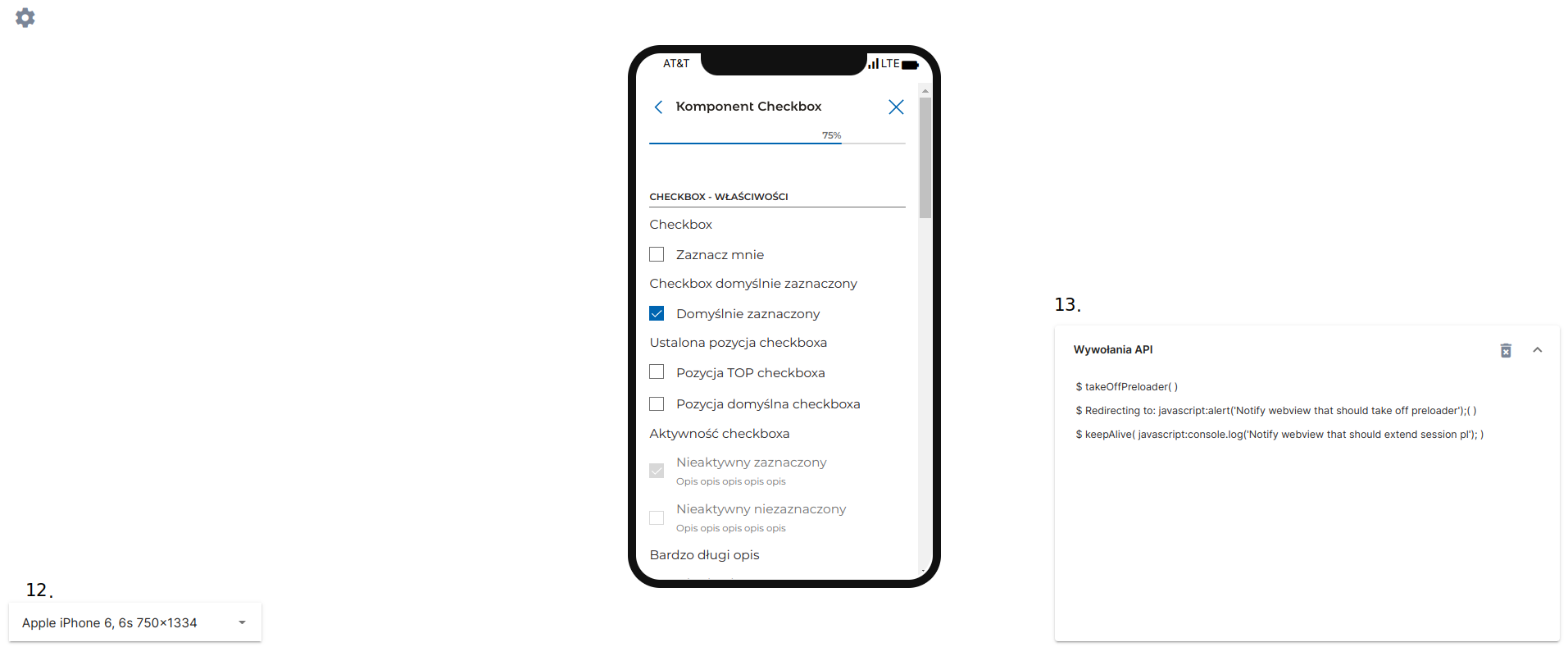
After selecting the application launch channel, a button will appear in the lower-left corner of the screen allowing you to choose the simulated device (12). Changing the device adjusts the application's dimensions to those of the selected device. By default, Desktop Mode is simulated for the App, IB Inline, and IB Popup channels, while for the Native channel, iPhone X is simulated by default.
### API call preview
After selecting a launch channel other than desktop, a panel will be displayed in the lower-right corner **API calls**. It displays the API methods called by the simulated application. The component can be collapsed by clicking the title bar. The button with the trash icon in the title bar allows clearing the component contents.
Figure 3. Application screen after selecting the "Native" channel
### Configuration
To configure the simulator, prepare a JSON file that will contain a description of the available environments, layouts, and channels in which application simulation will be possible.
In the Eximee Designer settings, there should be a path to the configuration file as the value of the parameter **form-starter.configurationPath**, e.g.:
```
form-starter.configurationPath=/etc/eximee/form-starter.json
```
Example configuration file:
Configuration file
```
{
"showChannels": false,
"channels": [
{
"name": "app",
"formModes": [
{
"name": "app",
"label": "App",
"icon": "desktop_windows"
},
{
"name": "mobile",
"label": "Native",
"icon": "phone_iphone"
},
{
"name": "inline",
"label": "IB inline",
"icon": "featured_play_list_outlined"
},
{
"name": "popup",
"label": "IB popup",
"icon": "flip_to_front"
},
{
"name": "newTab",
"label": "New tab",
"icon": "open_in_new"
}
],
"defaultChannel": true
},
{
"name": "form",
"formModes": [
{
"name": "app",
"label": "App",
"icon": "desktop_windows"
}
]
}
],
"environments": [
{
"displayName": "Dev bank",
"url": "https://pl.dev.bank.eximee.consdata.local"
},
{
"displayName": "Dev bank CZ",
"url": "https://cz.dev.bank.eximee.consdata.local"
},
{
"displayName": "Mandarynka",
"url": "https://pl.mandarynka.eximee.consdata.local"
},
{
"displayName": "Mandarynka RREV",
"url": "https://pl-rrev.mandarynka.eximee.consdata.local"
},
{
"displayName": "Mandarynka CZ",
"url": "https://cz.mandarynka.eximee.consdata.local"
},
{
"displayName": "Mandarynka SK",
"url": "https://sk.mandarynka.eximee.consdata.local"
}
]
}
```
where:
* **showChannels** - an attribute specifying whether the simulator should display a dropdown list with the option to select a layout
* **channels** - list of available layouts
* **name** - layout name
* **defaultChannel** - whether the layout should be selected by default
* **formModes** - channels in which a given layout is available
* **name** - channel name supported in Eximee Designer
* **label** - displayed channel name
* **icon** - icon representing the given channel
* **environments** - environments on which application simulation can be launched
* **displayName** - display name
* **url** - environment address.
---
# Agent Instructions
This documentation is published with GitBook. GitBook is the documentation platform designed so that both humans and AI agents can read, navigate, and reason over technical content effectively. Learn more at gitbook.com.
## Querying This Documentation
If you need additional information that is not directly available in this page, you can query the documentation dynamically by asking a question.
Perform an HTTP GET request on the current page URL with the `ask` query parameter, and the optional `goal` query parameter:
```
GET https://docs.eximee.com/documentation/documentation-en/zarzadzanie-aplikacja-biznesowa/testowanie-i-debugowanie-aplikacji/symulator.md?ask=&goal=
```
`ask` is the immediate question: it should be specific, self-contained, and written in natural language.
`goal` is optional and describes the broader end goal you are ultimately trying to accomplish on behalf of the user. GitBook uses it to tailor the answer towards what is most useful for that goal.
The response will contain a direct answer to the question and relevant excerpts and sources from the documentation.
Use this mechanism when the answer is not explicitly present in the current page, you need clarification or additional context, or you want to retrieve related documentation sections.