For the complete documentation index, see llms.txt. This page is also available as Markdown.

Parking and unparking requests

Introduction

Parking the application consists of saving its current state (all completed application fields), excluding added attachments, for later return to that state when unparking the application.

Settings

In this section, we can configure the user's temporary save option.

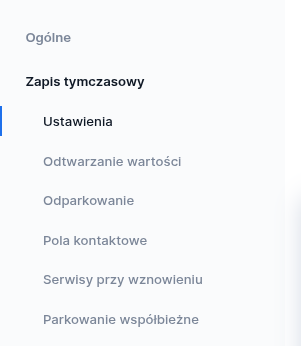
Figure 1. Temporary save in the Properties tab in Eximee Designer
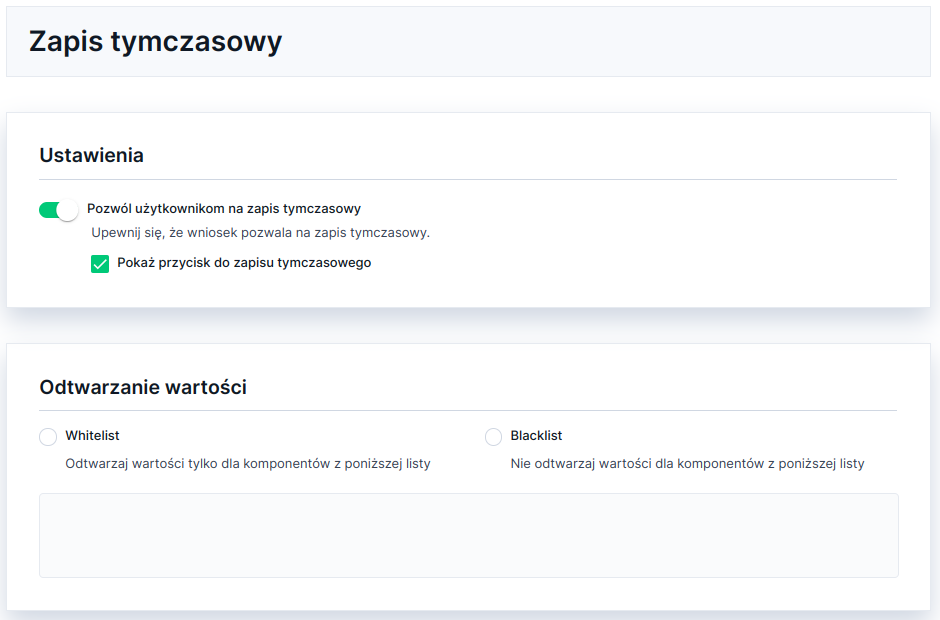
Figure 2. Enabling the application parking option
For such a configured and then published template, when filling out an application based on it, a section responsible for parking with a button appears on the screen.

Restoring values (whitelist/blacklist of fields)

In the section Restoring values we can specify:

  • which fields should not be unparked when unparking the application using Blacklist,

  • which fields should be unparked when unparking the application using Whitelist (an empty list means that nothing will be unparked).

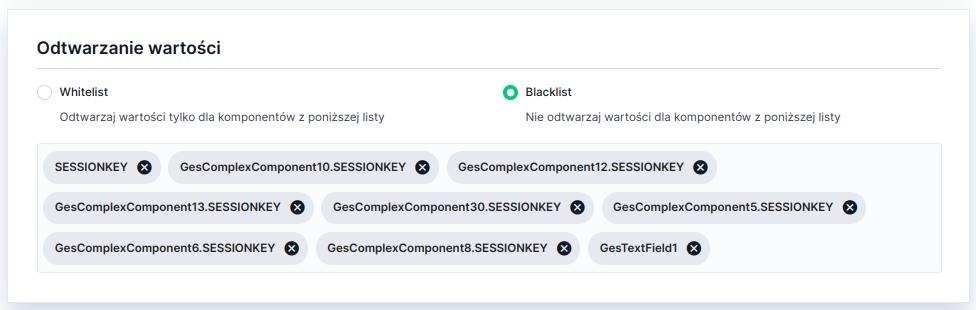
You cannot use both a whitelist and a blacklist at the same time. To choose one list (Whitelist or Blacklist), use the list located in the tab Properties field Temporary save and subsection Restoring values:

Figure 3. Example of choosing a blacklist when unparking
To define fields, add them to the list.

Use cases

Example 1 - a promotion that should expire after unparking:

  • we have the "xmas" promotion,

  • for applications launched with the promotion=xmas parameter, we have better terms,

  • the promotion ends on Friday,

  • on Friday we publish the application template that no longer supports the "xmas" promotion,

  • in the template we put "promotion" (and all variables to which the value of the promotion variable is copied, e.g. via the Input parameters of composite components) on the blacklist,

  • an application parked on Thursday and unparked on Saturday will not contain the promotion=xmas fields (unless it was passed again as an input parameter to the application).

Example 2 - a promotion that we want to unpark, but with the ability to override it with the appropriate parameter:

  • for the "xmas" promotion from the above example, we want to change the promotion type to promotion=xxx,

  • if no parameter is provided, we want to use the promotion with which the customer first entered the application,

  • in the template we put all variables to which the value of the promotion variable is copied, e.g. via the Input parameters of composite components, on the blacklist, but we do not add the promotion variable to the blacklist,

  • customer after unparking with the promotion=xxx parameter will have the xxx promotion active,

  • customer after unparking without the promotion parameter, will will have the same promotion active with which the application was parked.

Parking the application

Parking the application consists of saving its current state (all completed application fields), excluding added attachments, in order to later return to that state.

Unlogged customer

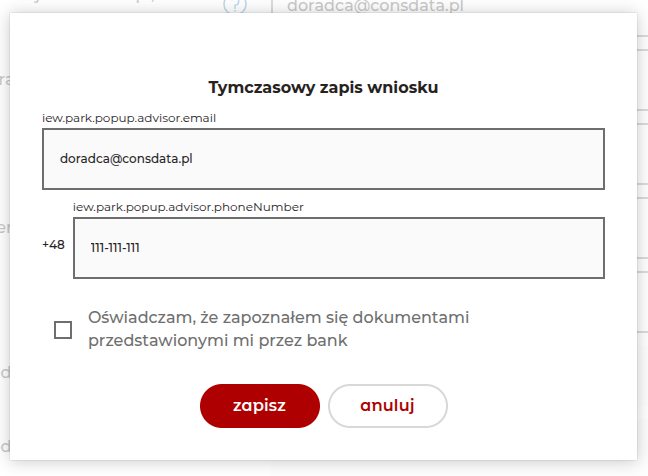
We start the parking process by pressing the "Save", which causes a dialog window to appear. In this window System asks us to enter authentication data, based on which the user will be identified in the process of unparking the given application.

Figure 4. Authentication data entry window
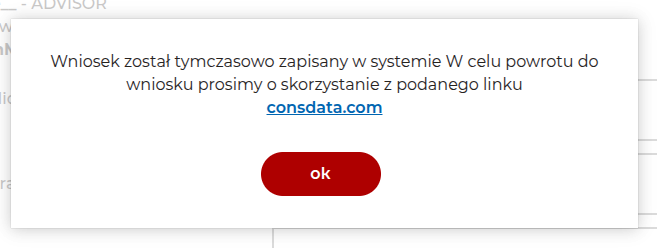
After confirming the data with the "Save" button, the application will be saved together with the entered identification data and its unique assigned number in the repository. This is confirmed by displaying the following dialog window:

Figure 5. Application parking confirmation window
An application parked in this way is ready to be unparked.

Note! Entered passwords are checked for security according to the recommendations of the National Institute of Standards and Technology. The default configuration will include such a policy that the password consists of:

  • one uppercase letter,

  • one lowercase letter,

  • a digit and a special character,

  • must be at least 8 characters long.

The configuration is independent for each client and can be changed in webforms.xml under the key: <passwordPolicy> (this is a regex). Additionally, it will be possible to modify the message returned when a password that does not meet security requirements is entered - this time in navigation.localization for each client. The key iew.form.password.policyInfo corresponds to the message describing what requirements the password should meet, and iew.form.password.policyViolation is the key for the message displayed when an attempt is made to enter a password that does not meet security requirements.

Logged-in customer

In the case of a logged-in customer, after pressing the "Save" button, the application will be saved in the system without the need to provide authentication data. The mechanism uses the client identifier retrieved from the session. After successful parking, a confirmation message will be displayed.

Note that a user can have only one parked instance of a given type of application.

Unparking the application

Unparking the application is a feature that allows retrieving a previously parked application (along with all fields filled in at the moment of parking, but excluding attachments added to the parked application).

Unlogged customer

To start the unparking process, go to the page whose link we receive in the dialog confirming successful parking of the application (Figure 5) or in the email received after parking (to the address provided during parking).

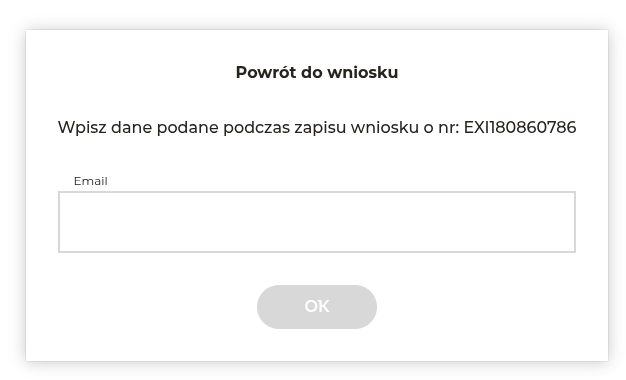
After the page located at the specified link is displayed in the browser, a dialog box appears in which System it requests confirmation of the identifying data of the person who parked the application:

Figure 6. Application unparking window
Unparking the application is possible only after correctly entering the identification data (email and password) saved during the parking process. After pressing the "OK" button, we will be redirected to the application page with the field states from the moment it was parked.

Logged-in customer

Unparking a previously saved application for a logged-in customer can be done in two ways:

Method one

Calling the action load.html - request POST to the address https://eximee-dmz:8080/webforms/wnioski/NAZWA_WNIOSKU/load.html

where: NAZWA_WNIOSKU - the name of the application to unpark

After calling the action, we will be redirected to the application page with the field states from the moment it was parked.

Method two

Availability of functionality depends on the license and may not be available in all deployments.

Calling the action getFormTemplate - request POST to the address https://eximee-dmz:8080/webforms/api/formService/getFormTemplate

If the application was previously parked, the action will return the application with the field states from the moment it was parked.

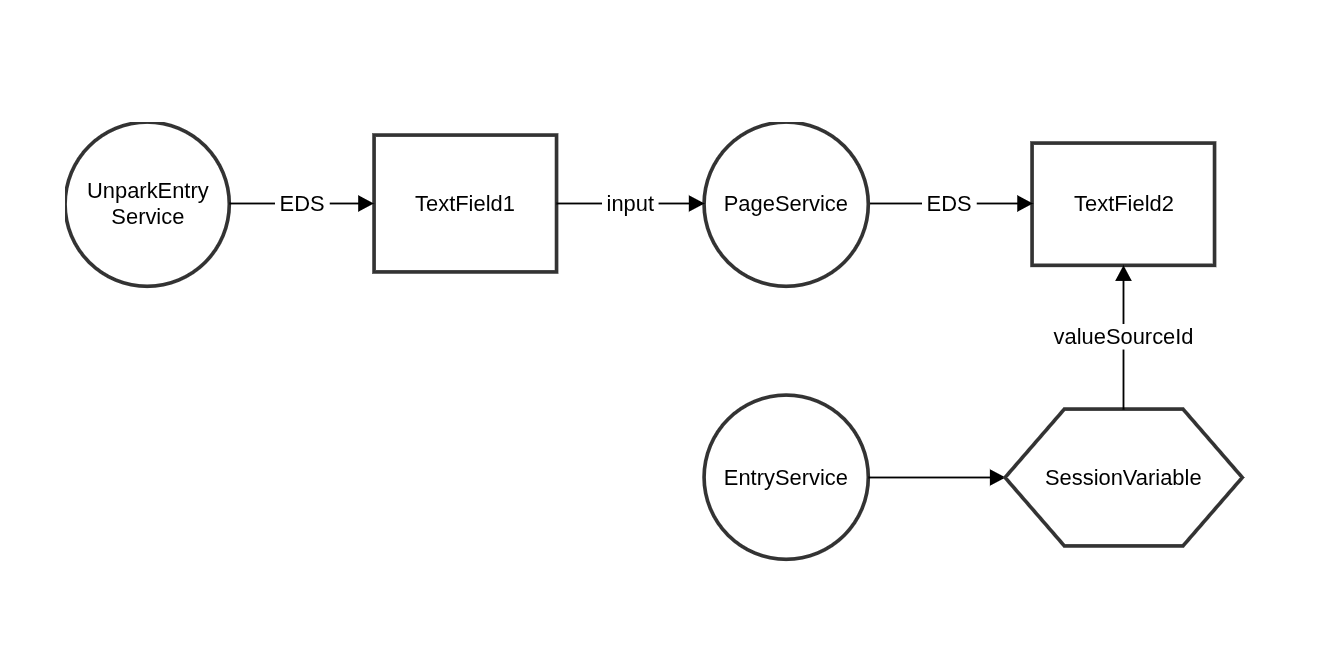
Services triggered upon unparking

For an application, you can define services that will be called at the moment the application is unparked. The method for adding them is described in Services on resume.

The services are called before entry service and can overwrite values on the application.

Figure 7. Data flow

In this case TextField1 is fed by means of UnparkEntryService. It affects the value of the field TextField2 (through PageService, e.g. EchoService). Since the services UnparkEntryService are executed before the services EntryService and the field TextField2 is affected by the field fed by UnparkEntryService then ultimately the value of the field TextField2 will correspond to the value of the session variable SessionVariable fed by means of EntryService.

Notifications

Notifications sent after parking the application are implemented using the notification mechanism described here: Autosave and contact fields.

A link to unpark the application can be attached to notifications.

Following the link sent in the notification allows you to unpark applications parked by a logged-in user as well as applications parked by an unlogged user.

If the application was parked by a logged-in user, following the link contained in the notification redirects to the login page. If the customer authenticates, they will then be redirected to the last parked application of this type, prepared for further editing.

If the application was parked by unlogged user, following the link contained in the notification redirects to the one-time access password verification page. When entering this page, an SMS one-time access code to the application is sent to the phone number saved in the application. To launch the parked application, the user must confirm their identity by entering the received password. The content of the SMS message with the one-time access code comes from the email message template specified in the webforms application configuration, in the file /etc/eximee/webforms.xml on the dmz server. Below is an example configuration (you must provide the name and version of the email message template from the repository):

Conditional unparking of the application

Availability of functionality depends on the license and may not be available in all deployments.

For an application, you can define a condition that will be checked at the moment of unparking. When the condition is met, the application will be unparked and shown to the user. Otherwise, a new form is created.

Figure 8. The Application unparking section with a condition to be met

Information on how to define conditions can be found on the page: Expression language for defining conditions (conditions from getValue).

The conditional application unparking feature extends the method _getValue('componentId')_ of the expression language with two new features:

  • the ability to access a component's value by its MID,

  • the ability to take an argument with the prefix parked. This prefix allows access to the parked values of the application.

Sample unparking condition based on MID

Sample unparking condition based on ID

Sample unparking condition using injectableFields

Note! It may happen that when we unpark an application, other pages may appear that were not visible before.

We should then go to the first page that had not been visited before.

Note! During unparking, the application status locking mechanism. This means that as long as the application is unparked, it cannot change its status (e.g. to an abandoned application). Such applications are unlocked when parking (including automatic parking), saving, or after 1 day from the last modification (protection against applications hanging in the system).

More about this mechanism can be found here: Status locking mechanism

Last updated

Was this helpful?
