> For the complete documentation index, see [llms.txt](https://docs.eximee.com/llms.txt). Markdown versions of documentation pages are available by appending `.md` to page URLs; this page is available as [Markdown](https://docs.eximee.com/documentation/documentation-en/budowanie-aplikacji/interfejs-uzytkownika/formularze/tworzenie-formularza/przyciski-nawigacyjne.md).
# Navigation buttons
## Navigation button behavior
Forms in Eximee are equipped with a default set of navigation buttons that allow the user to move between successive pages of the application and to submit it at the end. Depending on the position in the form structure, the system automatically displays the buttons **Back**, **Next** or **Submit application**.
Buttons **Back** and **Next** are used to navigate between pages of the application within the same step or between steps if the form has been divided into several stages. The button **Submit application** is visible only on the previous page [**Application save point**](/documentation/documentation-en/budowanie-aplikacji/interfejs-uzytkownika/formularze/tworzenie-formularza/punkt-zapisu-wniosku-i-mechanizm-ostatnich-stron.md) and using it saves the data in the form repository and ends the completion process.
The default buttons are generated by the application **Forms** and work automatically, without the need to define additional actions. Their behavior corresponds to the standard application flow and is consistent with the configuration defined in the form step structure.
## Changing the labels of the “Next”, “Submit application”, "Back" buttons
Eximee Designer allows you to modify button text to adapt it to the business, language, or process stage context. The change can be made for the entire form or only for a selected page.
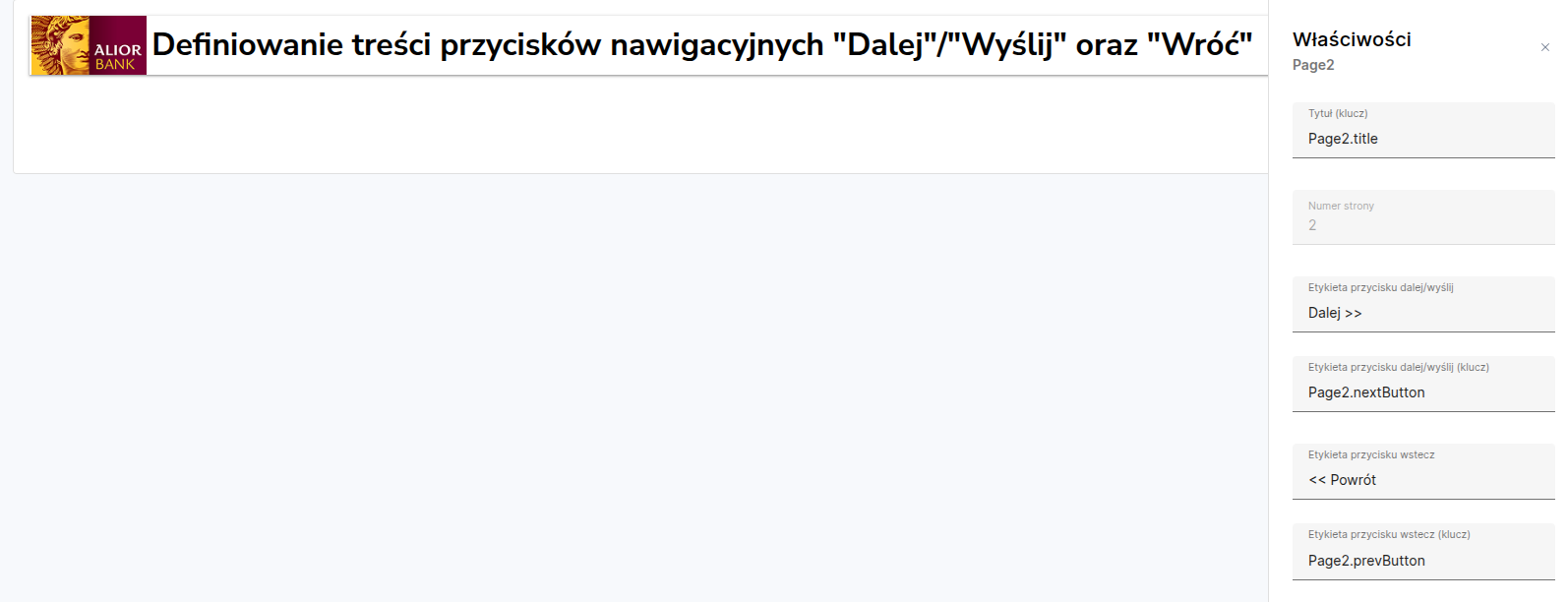
For a single page, the button property is defined in the form editor in the **Basic properties** fields of the page we are interested in:
* **Next/submit button label** (labelForNextOrSubmitButtonKey). This allows the default “Next” or “Submit application” label to be replaced with custom text, e.g. “Go to summary” or “Finish registration”.
* **Back button label** (labelForBackButtonKey). This allows the default “Back” label to be replaced with custom text, e.g. “Return” or “Go back to the previous page”. The entered translation applies only to the given page, without affecting the other elements of the application.
Figure 1. Where to change the Next and Back button text
This solution allows the designer to adapt the language of communication with the user to the context of the operation, especially in complex forms where individual steps serve different functions.
{% hint style="info" %}
Demo application: demoCustomButtons
{% endhint %}
## Changing button text in the translation system
If a global change of button labels is needed throughout the form, it can be made in the tab **Translations**. Overriding the values assigned to these keys allows the button text to be changed without having to edit each page separately.
To modify the labels of functional buttons in the application template, go to the tab **Translations** and add or edit the relevant keys along with their contents:
| Key name | Default value | Description |
| ---------------------- | ------------------------- | -------------------------------------------------------------- |
| iew\.navigation.submit | "Send"/"Submit form/Save" | Text on the button on the last page of the form |
| iew\.navigation.next | "Next" | Text on the button for moving to the next page of the form |
| iew\.navigation.prev | "Back"/"Return"/"Undo" | Text on the button for moving to the previous page of the form |
For buttons **Next**, **Back** and **Submit application** system translation keys associated with their function are used. Each of them can have a value defined in different languages, making it possible to fully adapt the interface to the project and localization requirements.
The translation system in Eximee uses a hierarchy of content overriding. Translations entered for a specific page have priority, followed by session variables and translations assigned to the form, and finally the default keys provided with the platform. This mechanism ensures interface consistency and enables flexible content management while maintaining control over the language throughout the application.
{% hint style="info" %}
Demo application: demoPrzyciskiWniosku
{% endhint %}
## Summary
The navigation button mechanism in Eximee is an integral part of the form flow logic and does not require additional configuration. At the same time, it allows full customization of the content, both for individual pages and for the entire form. The designer can easily create coherent, multilingual forms that remain clear and aligned with business processes.
---
# Agent Instructions
This documentation is published with GitBook. GitBook is the documentation platform designed so that both humans and AI agents can read, navigate, and reason over technical content effectively. Learn more at gitbook.com.
## Querying This Documentation
If you need additional information that is not directly available in this page, you can query the documentation dynamically by asking a question.
Perform an HTTP GET request on the current page URL with the `ask` query parameter, and the optional `goal` query parameter:
```
GET https://docs.eximee.com/documentation/documentation-en/budowanie-aplikacji/interfejs-uzytkownika/formularze/tworzenie-formularza/przyciski-nawigacyjne.md?ask=&goal=
```
`ask` is the immediate question: it should be specific, self-contained, and written in natural language.
`goal` is optional and describes the broader end goal you are ultimately trying to accomplish on behalf of the user. GitBook uses it to tailor the answer towards what is most useful for that goal.
The response will contain a direct answer to the question and relevant excerpts and sources from the documentation.
Use this mechanism when the answer is not explicitly present in the current page, you need clarification or additional context, or you want to retrieve related documentation sections.