> For the complete documentation index, see [llms.txt](https://docs.eximee.com/llms.txt). Markdown versions of documentation pages are available by appending `.md` to page URLs; this page is available as [Markdown](https://docs.eximee.com/documentation/documentation-en/budowanie-aplikacji/interfejs-uzytkownika/eximee-dashboard/konfiguracja/notatki.md).
# Notes
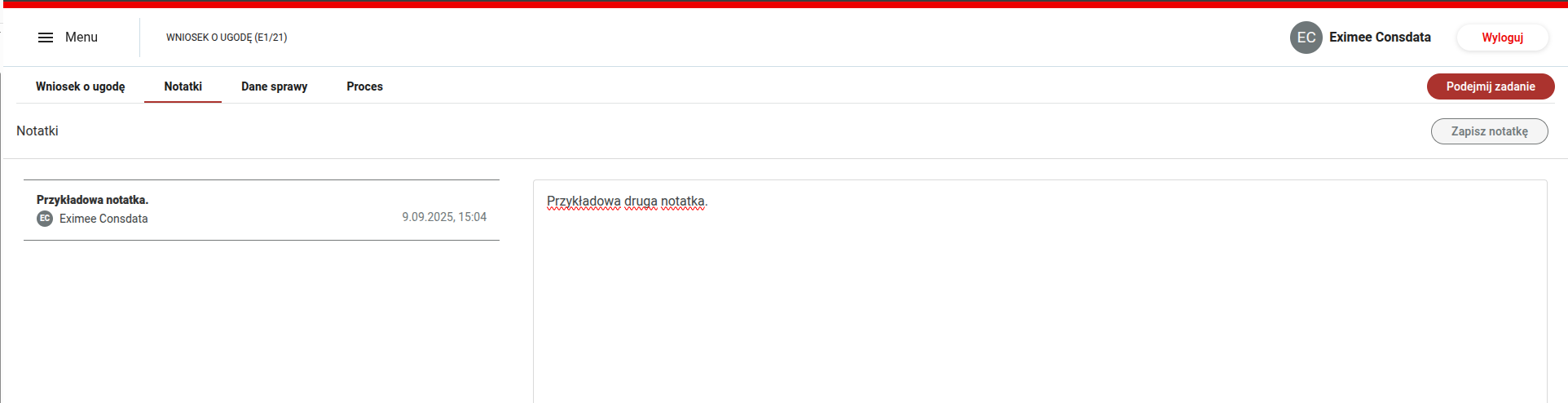
Illustration 1. "Notes" tab
Tab `Notes` displays a list of notes assigned to the case, ordered from newest to oldest. Each list item contains the note content, the author's first and last name, and the creation date. After selecting a note, its full content appears in the panel next to it. If there are no notes yet in the case, the list shows the message `No notes`, and you can immediately prepare a new note in the panel.
## Adding a tab to the application
The notes tab is declared in the script [application screen configuration](/documentation/documentation-en/budowanie-aplikacji/interfejs-uzytkownika/eximee-dashboard/konfiguracja/konfiguracja-ekranow-aplikacji.md), just like the other case tabs — as an entry `processTabV1` of type `notes`:
```javascript
function call() {
return processConfigV1()
.tab(
processTabV1("zakladka-notatki", "Notes", "notes", "feature_browse_notes")
);
}
```
Arguments relevant to this tab:
| Argument | Meaning |
| ------------ | -------------------------------------------------------------------------------------------------------------------------------------------------------------------------- |
| `id` | Tab identifier used in the case view URL, e.g. `HOST:PORT/#/process/{idSprawy}/zakladka-notatki`. It must be unique within a given configuration. |
| `type` | Must have the value notes for Eximee Dashboard to display the notes component. |
| `permission` | Must have the value `feature_browse_notes`. Otherwise the tab will be visible to every employee with access to the case, including those without permission to read notes. |
The screen configuration is assigned to a specific application. To make notes available in other applications, you need to add the tab in each application's configuration.
## Permissions
Access to notes is controlled by four permissions from the list [Permissions](/documentation/documentation-en/budowanie-aplikacji/interfejs-uzytkownika/eximee-dashboard/konfiguracja/uprawnienia.md). They are assigned in the same way as the other Eximee Dashboard permissions - through role mapping in the parameter `AUTH_ROLE_MAPPING`.
| Permission | Possible action |
| ---------------------- | ----------------------------------------------- |
| `feature_browse_notes` | Reading case notes. |
| `feature_add_notes` | Adding and saving a new note. |
| `feature_modify_notes` | Editing and saving changes to an existing note. |
| `feature_delete_notes` | Deleting a note. |
When granting permissions, two differences in their behavior should be taken into account:
* `Deletion`: the delete button is visible only to the note author. This restriction results from the interface behavior, not from the permission itself `feature_delete_notes`.
* `Editing`: a user with the permission `feature_modify_notes` can also edit other people's notes. After saving changes, the author, creation date, and case association remain unchanged; only the last modified date is updated.
## Restrictions
* A note may contain only plain text without formatting, attachments, or images.
* Notes are available after opening a case. They cannot be searched from the case list or task list.
* A note is assigned to a case, not to a task or process step.
* Adding, editing, and deleting a note do not emit process events or affect the course of the process.
## Environmental requirements
For the tab to work, the notes module is required: in Eximee Dashboard, a notes data source must be configured (`eximee.notes.*`), and the notes schema migration must have been performed in the database. Without this configuration, the tab may appear, but attempting to read or save notes will result in an error.
## Most common issues
| Symptom | Most common cause |
| ------------------------------------------------------------------------ | -------------------------------------------------------------------------------------------------------------------------------------- |
| The tab does not appear, although the case opens normally | The employee does not have `feature_browse_notes`, or the configuration script for this specific application does not declare the tab. |
| The tab is not visible in one application, although it works in another. | The screen configuration is assigned to the application - the entry is missing in that application's script. |
| After granting permission, the tab is still not visible. | Permissions are fetched during login. You need to log out and log back in. |
| The tab is visible, but there is no save button. | No `feature_add_notes` (and possibly `feature_modify_notes`). Just `feature_browse_notes` allows read-only access. |
| The tab opens, but reading notes returns an error | The notes module is not fully configured in this environment — see “Environmental requirements". |
---
# Agent Instructions
This documentation is published with GitBook. GitBook is the documentation platform designed so that both humans and AI agents can read, navigate, and reason over technical content effectively. Learn more at gitbook.com.
## Querying This Documentation
If you need additional information that is not directly available in this page, you can query the documentation by asking a question.
Perform an HTTP GET request on the following URL with the `ask` and `goal` query parameters:
```
GET https://docs.eximee.com/documentation/documentation-en/budowanie-aplikacji/interfejs-uzytkownika/eximee-dashboard/konfiguracja/notatki.md?ask=&goal=
```
`ask` is the immediate question: it should be specific, self-contained, and written in natural language.
`goal` is what the user is ultimately trying to achieve, the reason they need the answer. Sharing it helps GitBook give you a better, more relevant answer. A goal is most helpful when it describes the outcome the user wants rather than restating the question. For example, with `ask=how do I create an API token`, a goal like `automate deployments from our CI pipeline` lets GitBook tailor the answer to that use case.
The response will contain a direct answer to the question and relevant excerpts and sources from the documentation.
Use this mechanism when the answer is not explicitly present in the current page, you need clarification or additional context, or you want to retrieve related documentation sections.