> For the complete documentation index, see [llms.txt](https://docs.eximee.com/llms.txt). Markdown versions of documentation pages are available by appending `.md` to page URLs; this page is available as [Markdown](https://docs.eximee.com/documentation/documentation-en/budowanie-aplikacji/interfejs-uzytkownika/eximee-dashboard/konfiguracja/lista-spraw.md).
# Case list
## Configuration of case visibility on the case list
In order for cases to be visible on the list, permissions for the role must be configured [user](/documentation/documentation-en/budowanie-aplikacji/interfejs-uzytkownika/eximee-dashboard/konfiguracja/uprawnienia.md) (PROCESS\_DEFINITION\_KEY\_MAPPING parameter).
Additionally, case visibility on the list is handled by the mechanism: Dynamic definition of access to the case list (setAccessGroups).
{% hint style="warning" %}
This mechanism grants only \*\*additional\*\* permissions. The functionality does not allow removing case permissions granted via PROCESS\_DEFINITION\_KEY\_MAPPING.
{% endhint %}
## Case label configuration
It is possible to configure the label for the case in the left part of the tile on the Eximee Dashboard page located e.g. at:
```
ROUTER_HOST:8083/router-ui/#/processes
```
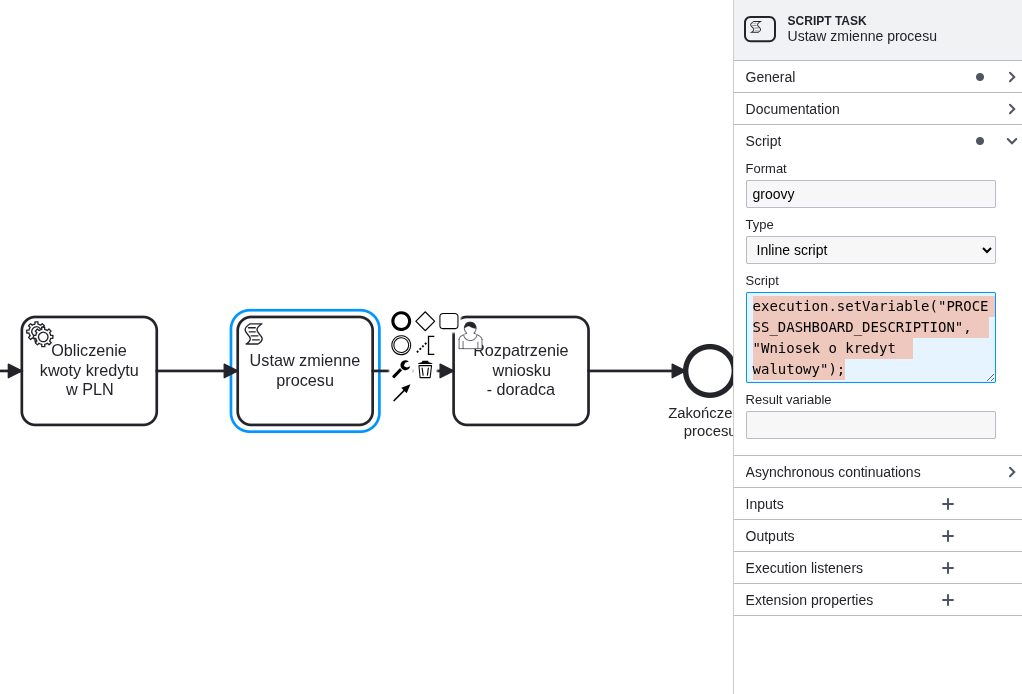
To configure the label, create a new task of type in the BPMN process *ScriptTask* and attach it to the process:
Figure 1. Configuration of the "ScriptTask" task
In the configuration [of the script task](/documentation/documentation-en/budowanie-aplikacji/proces-biznesowy/zadania-automatyczne/zadanie-skryptowe-bpms-scripttask.md) you should set:
* **Script Format**: groovy
* **Script Type**: Inline Script
* **eScript**: Here is code in Groovy that will set in the variable **PROCESS\_DASHBOARD\_DESCRIPTION** the value of the label as text, e.g.
```
execution.setVariable("PROCESS_DASHBOARD_DESCRIPTION", "Foreign currency loan application");
```
Figure 2. Case list
When the process is completed (has status *COMPLETED*), the following text is displayed: *Case completed*.
When the process is not completed and the variable is not filled in **PROCESS\_DASHBOARD\_DESCRIPTION** we do not display the label.
In other cases, we display the text specified in **PROCESS\_DASHBOARD\_DESCRIPTION**, in the example these are "Process start" and "Form".
## Data display configuration
It is possible to configure the displayed data in the middle part of the tile on the Eximee Dashboard page located e.g. at:
```
ROUTER_HOST:8083/router-ui/#/processes
```
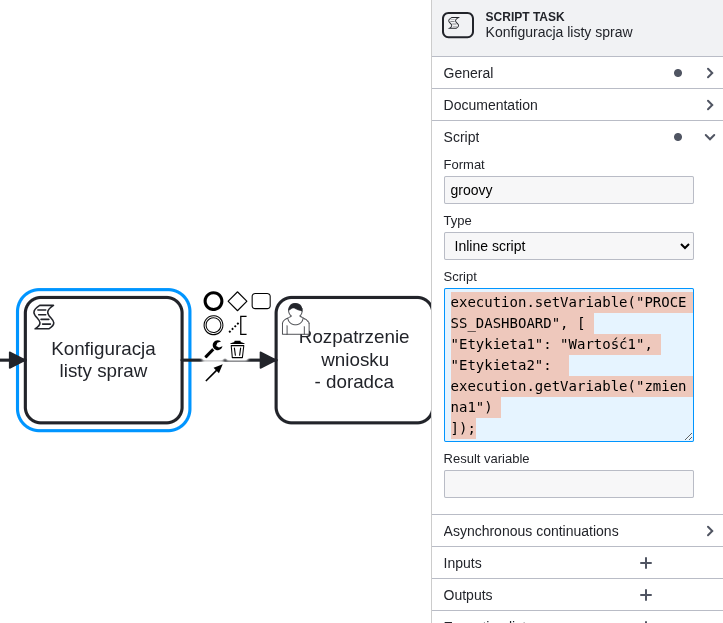
To configure which data we want to display in the middle part of the tile, create a new task of type in the BPMN process *ScriptTask* and attach it to the process:
Figure 3. Configuration of the "ScriptTask" task
In the configuration [of the script task](/documentation/documentation-en/budowanie-aplikacji/proces-biznesowy/zadania-automatyczne/zadanie-skryptowe-bpms-scripttask.md) you should set:
* **Script Format**: groovy
* **Script Type**: Inline Script
* **Script**: Here is code in Groovy that will set in the variable **PROCESS\_DASHBOARD** the configuration map for the right side of the tile.
We can add configuration in label-value form, which will be displayed on the case list in Eximee Dashboard.
Remember that the values in the key must be unique.
Literals or process variables can be passed to the map values using:
```
execution.getVariable("VARIABLE_NAME");
```
Example code completing the configuration:
```js
execution.setVariable("PROCESS_DASHBOARD", [
"Label1": "Value1",
"Label2": execution.getVariable("variable1")
]);
```
We can also determine the order of displayed variables by specifying at the beginning of the key a number in square brackets, based on which the variables will be sorted, e.g. "\[1]Label". Such a number will not be displayed, and variables without a number will go to the very end. For example, the map:
```js
execution.setVariable("PROCESS_DASHBOARD", [
"[3]A": "A",
"B": "B",
"[1]C": "C"
]);
```
will be displayed as key-value pairs in the order of labels C, A, B.
---
# Agent Instructions
This documentation is published with GitBook. GitBook is the documentation platform designed so that both humans and AI agents can read, navigate, and reason over technical content effectively. Learn more at gitbook.com.
## Querying This Documentation
If you need additional information that is not directly available in this page, you can query the documentation dynamically by asking a question.
Perform an HTTP GET request on the current page URL with the `ask` query parameter, and the optional `goal` query parameter:
```
GET https://docs.eximee.com/documentation/documentation-en/budowanie-aplikacji/interfejs-uzytkownika/eximee-dashboard/konfiguracja/lista-spraw.md?ask=&goal=
```
`ask` is the immediate question: it should be specific, self-contained, and written in natural language.
`goal` is optional and describes the broader end goal you are ultimately trying to accomplish on behalf of the user. GitBook uses it to tailor the answer towards what is most useful for that goal.
The response will contain a direct answer to the question and relevant excerpts and sources from the documentation.
Use this mechanism when the answer is not explicitly present in the current page, you need clarification or additional context, or you want to retrieve related documentation sections.